Email marketing? If you have a database, but you don’t know what to do with it, in this article we show you the first steps of any email marketing strategy to optimize your database. Let’s get started!
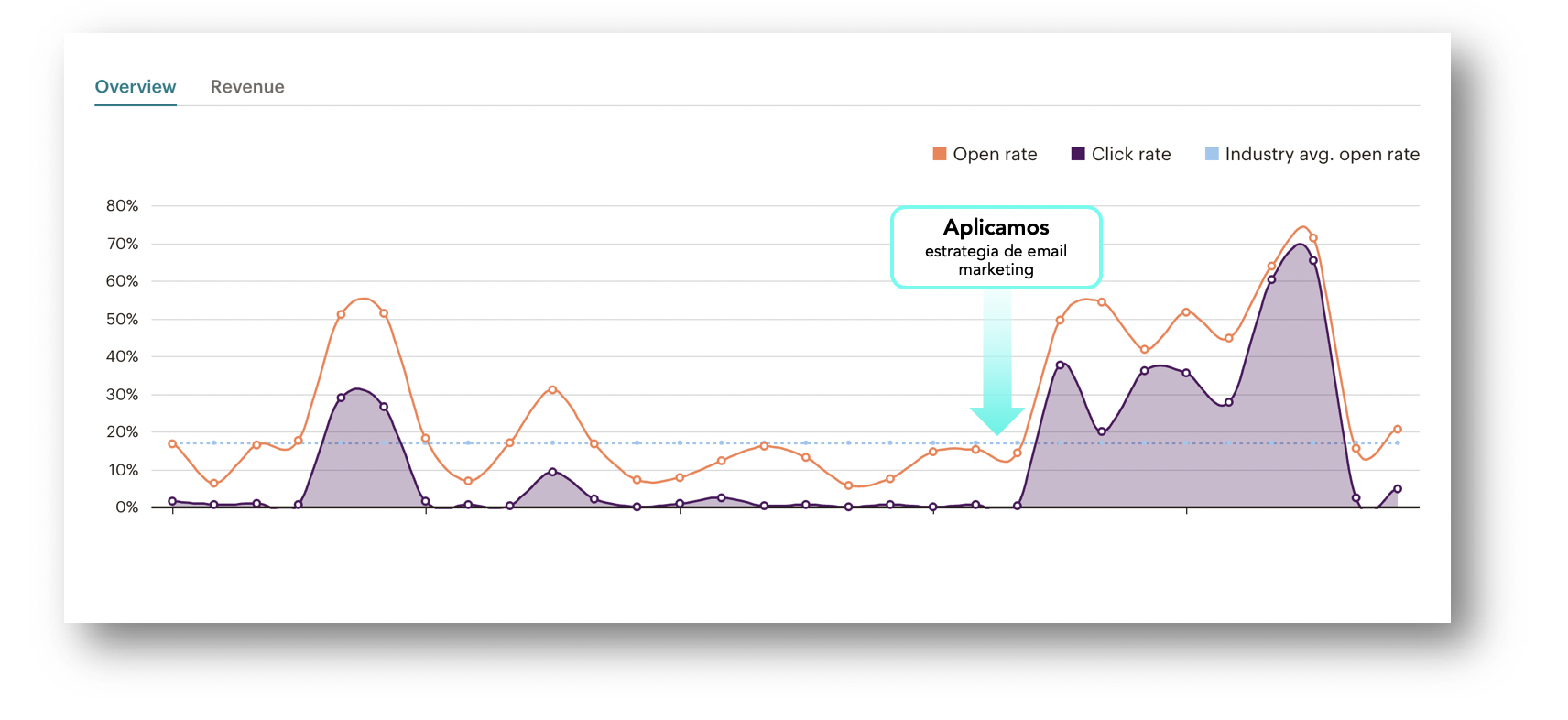
In this graph we can see the result of applying an appropriate email marketing strategy:
1. Introduction
One of the keys to the success of our email marketing actions is to have the right information about our contacts. To do this, we must constantly qualify them.
2. Ideas for database qualification
Idea 1. Find out at what stage of the decision process our users are in.
What are we looking for? The answer is obvious: to sell our products or services. But, we must not forget the importance of the process involved. Before being an alternative for our potential customers, they must have gone through a series of previous stages such as:
Awareness or brand recognition:
Do you know us? This phase – and given the new RGPD regulations – is considered to have been reached when we have the consent of our user to contact him. So, if we have their contact email, it is because they know us.
Investigation or need to be covered:
Does our user have a need to fill, and more importantly, do we know for sure? If we do… what is it?
Decision or possible solutions to my needs:
If our user has a need and only if he has a need, what can we offer him, and how do we do it?
Conversion or final choice:
The user has already decided to satisfy his need and we are already a real alternative, but what incentives do we offer compared to other possible choices?
Adoption:
This tag will be assigned to all active users in our database who have made a purchase.
Retention:
Has our user made more than one conversion?
Expansion:
Do you contract more than one type of service or buy other products? Let’s distinguish these users from ordinary buyers.
Advocacy:
We have been recommended. Or at least we have gotten them to forward, share or interact in Advocacy campaigns.

It is possible that this is the first time we have asked ourselves these questions, however, they are essential to be able to squeeze our database, however small it may be, and design a solid email marketing strategy.
In order to find out at what stage of decision our user is at, we must consider a customer’s path from the moment he/she registers until he/she makes a purchase or contracts a service.
The commonly called Customer Journey will help us understand how we should address each user in our database. But how to do it?
Many of them may have just registered and others may have subscribed after making a purchase, but are they segmented and categorized?
Idea 2. What interests them and how often they want to receive information.
We must also know what their interest is and what kind of information our contacts expect to receive from us.
By responding to the tastes or frequency and interests of our users, we will be able to have a first segmentation in our database.
[registro titulo=”Descárgate gratis nuestra guía de conceptos de e-mail marketing automation” url=”https://www.agenciareinicia.com/descarga-de-guia-conceptos-marketing-automation/” texto_boton=”La quiero” imagen=”https://www.agenciareinicia.com/wp-content/uploads/2019/07/Mailchimp_Logo-Vertical_Black.png”]
Idea 3. Have you ever purchased / contracted?
These are not the only segmentation criteria, but they are the first. Once we know what we should send, we must develop a strategy, defining the decision process in which it is found.
3. Using Typeform to qualify our contacts
One of the tools that will help us to know more about our users is Typeform, which together with MailChimp will be essential in a successful email marketing strategy.
Typeform is a tool for creating surveys, which in a simple and intuitive way helps us to create them in its platform, share them and synchronize the answers with our database.
All responses from our users can be synchronized with MailChimp fields in order to know to whom we should send one content or another, and how often.

Taking these two users into account, with Luis we will be able to carry out much more targeted campaigns than with Carlos, to whom we will send content that is sometimes not relevant.
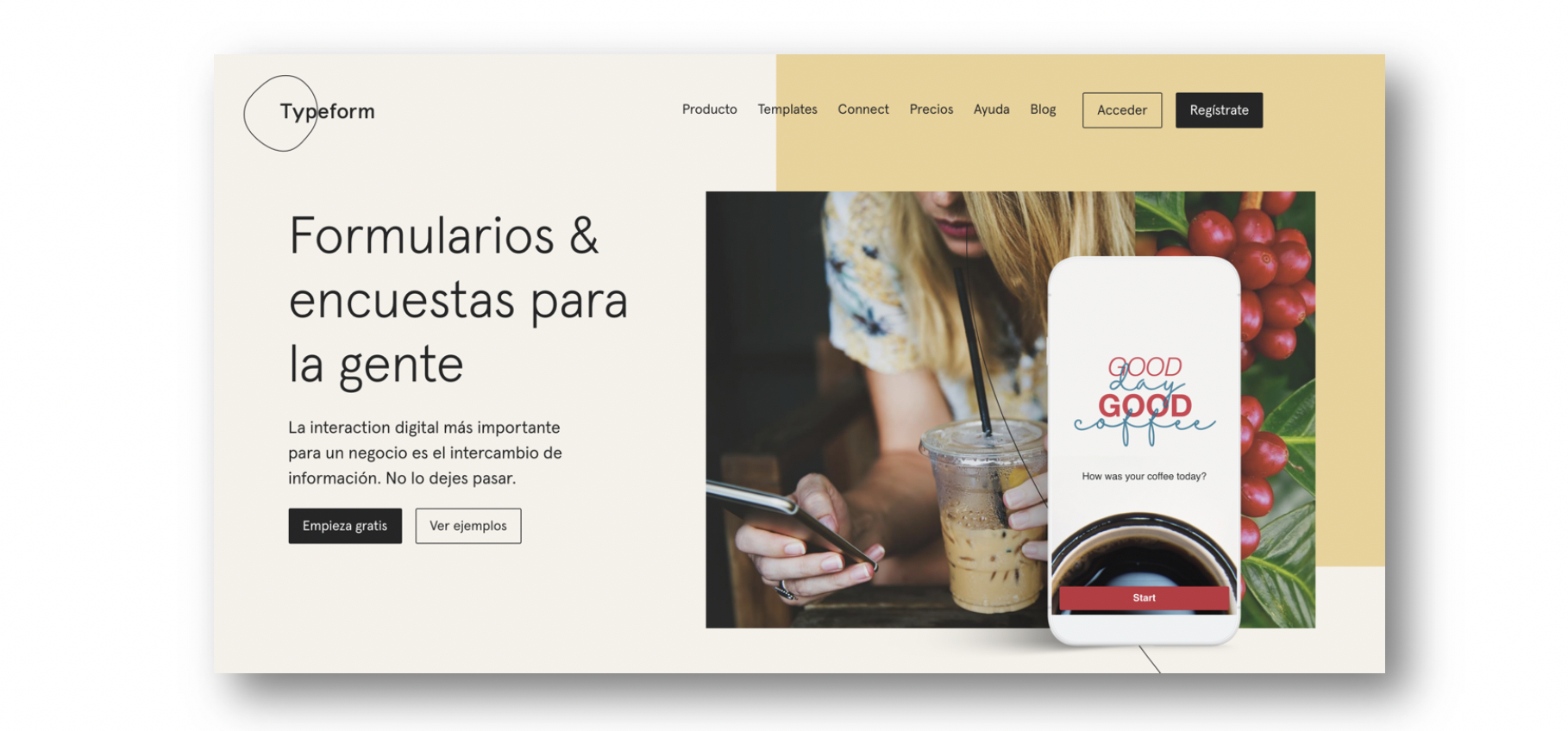
Let’s start with something easy! We access the Typeform page…
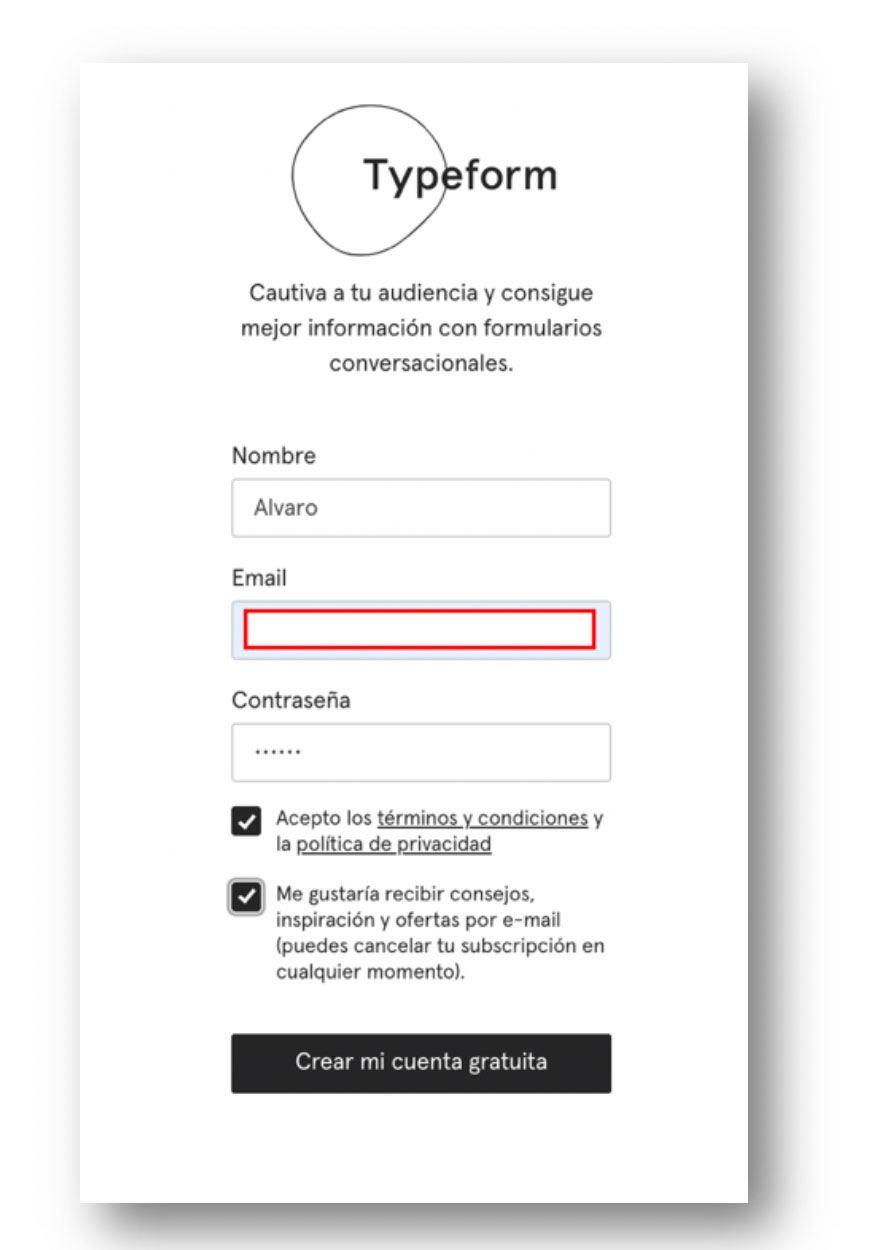
- We fill in the requested data and accept the terms and conditions.
- When you create the free account you will be sent an email to activate it.
- If we do not receive it, we check our email and resend the message.
- Any problems? Contact support.
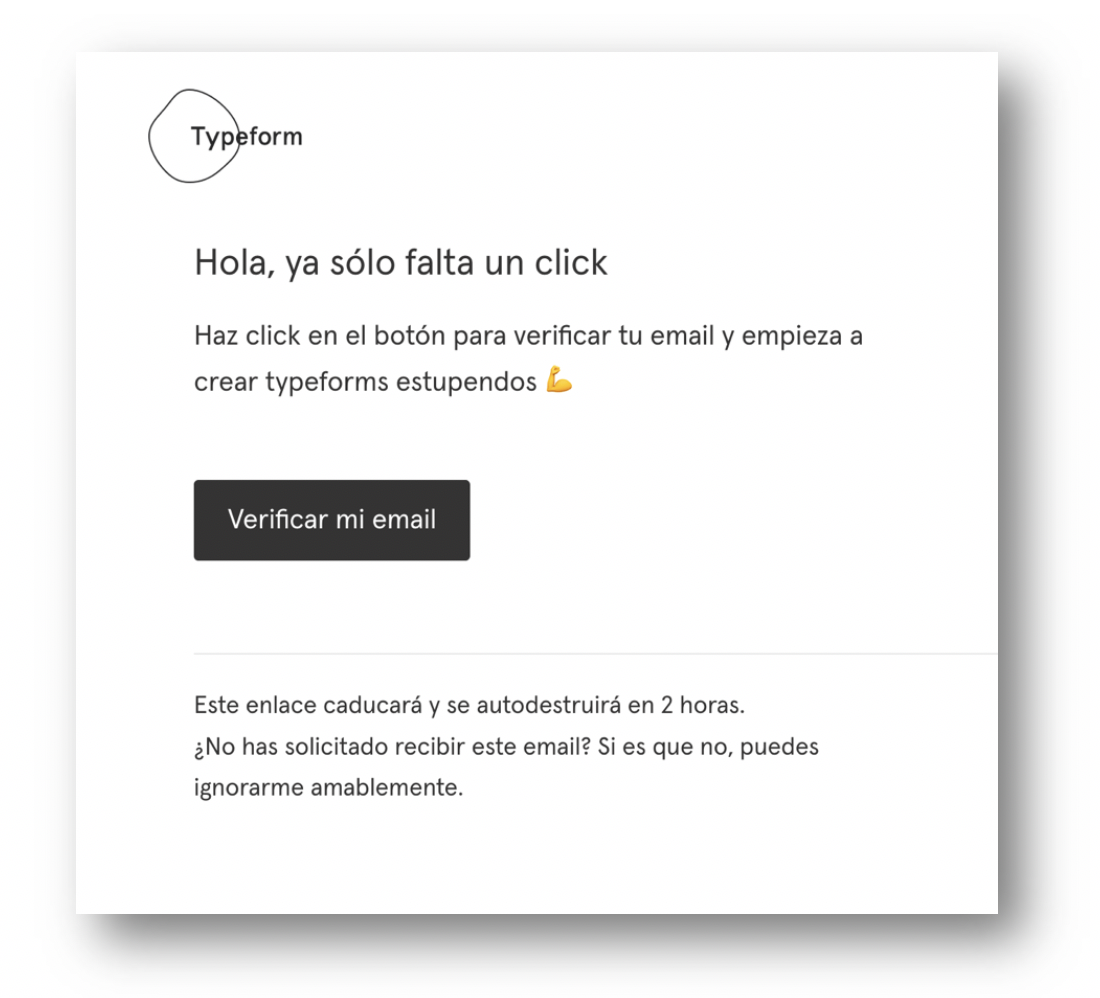
This is the message we will receive in our email where we can verify our account. We must remember that the link will “self-destruct” in 2 hours and we will not be able to access again.
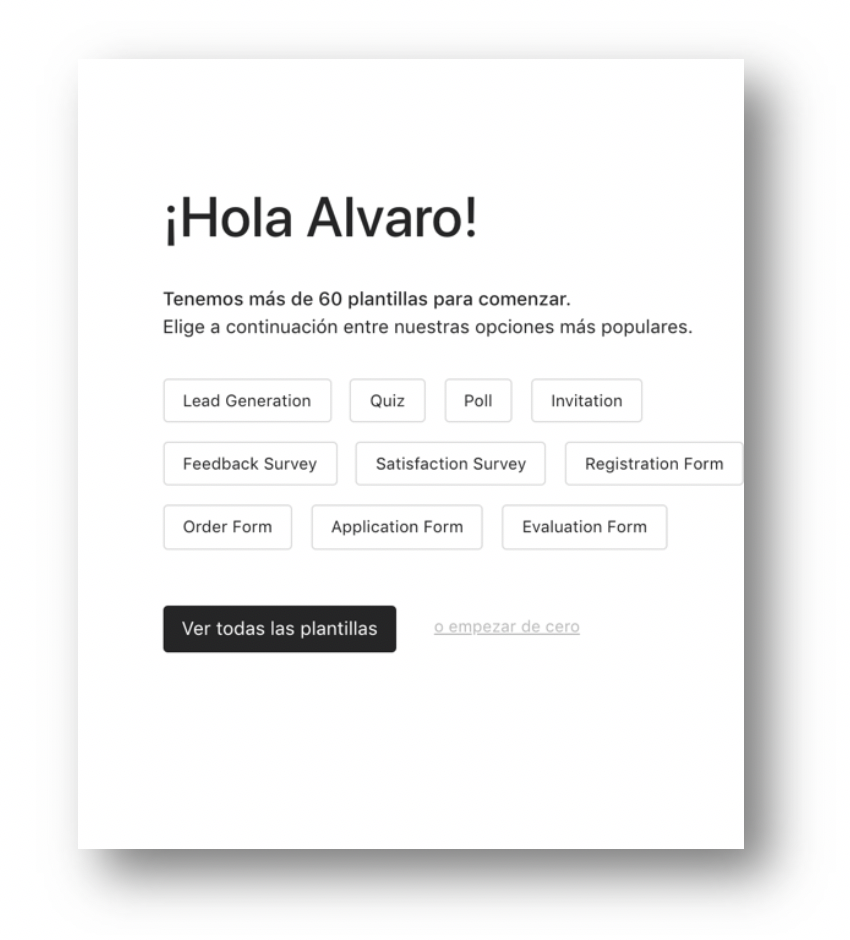
Once we have successfully activated our account we can start configuring our forms. Did we already choose the template? No, this time we start from scratch.
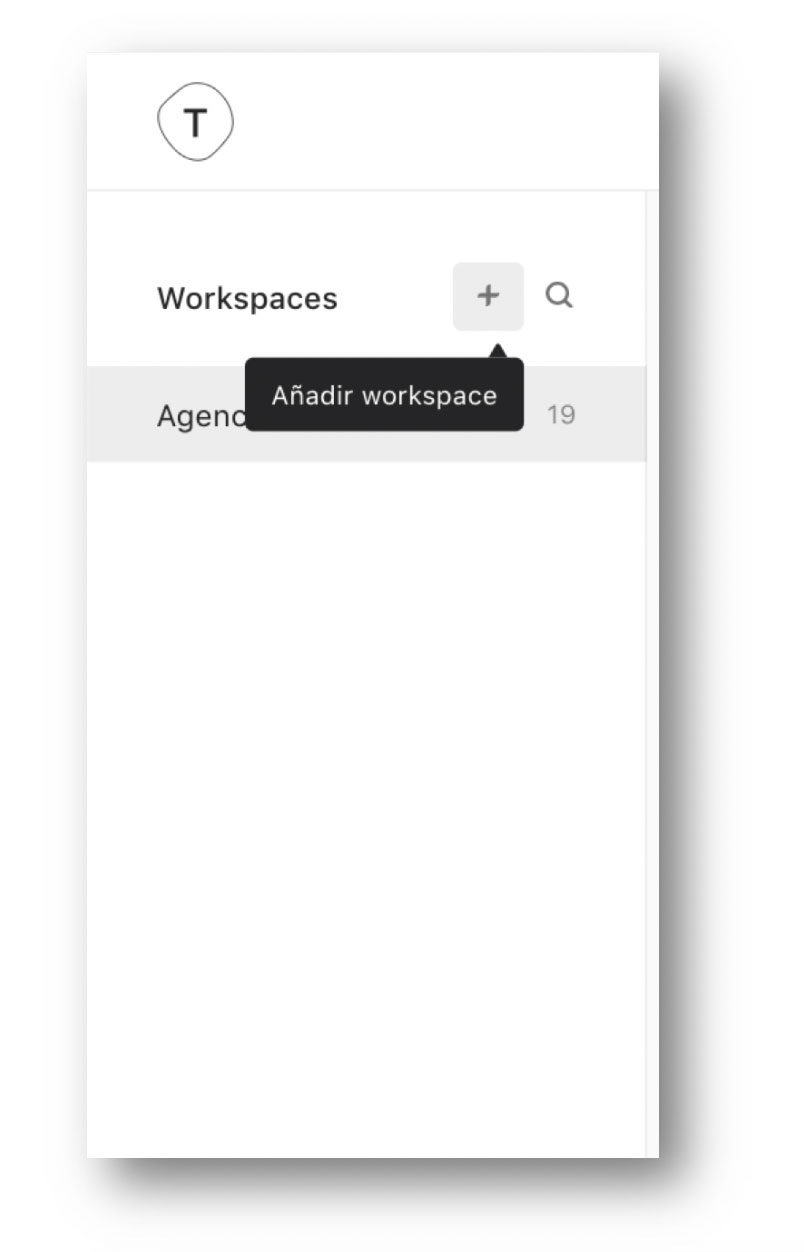
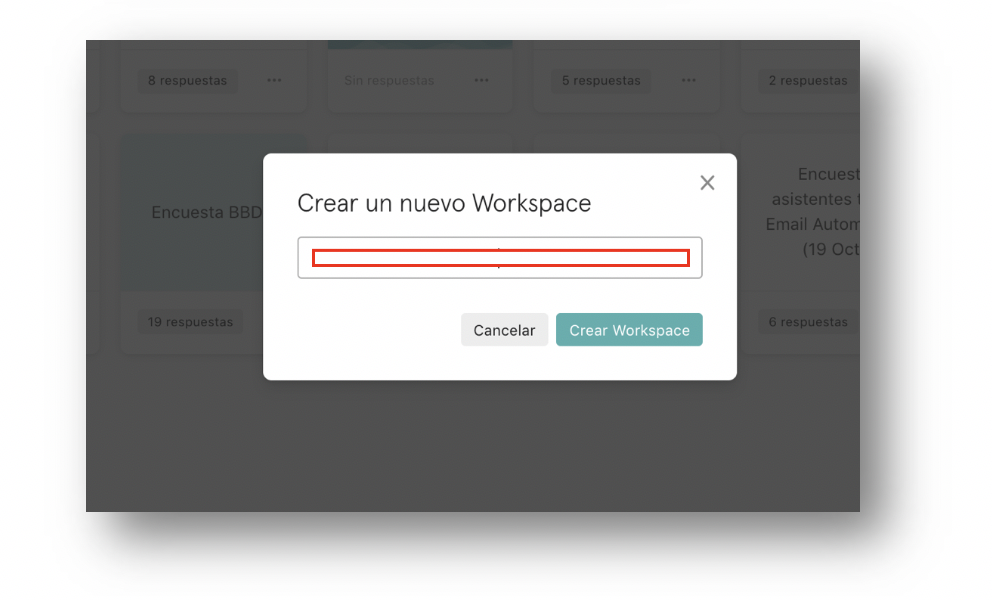
You can always access your Workspace in the main menu of your profile. What name do you want to give to your new Workspace? Go ahead!
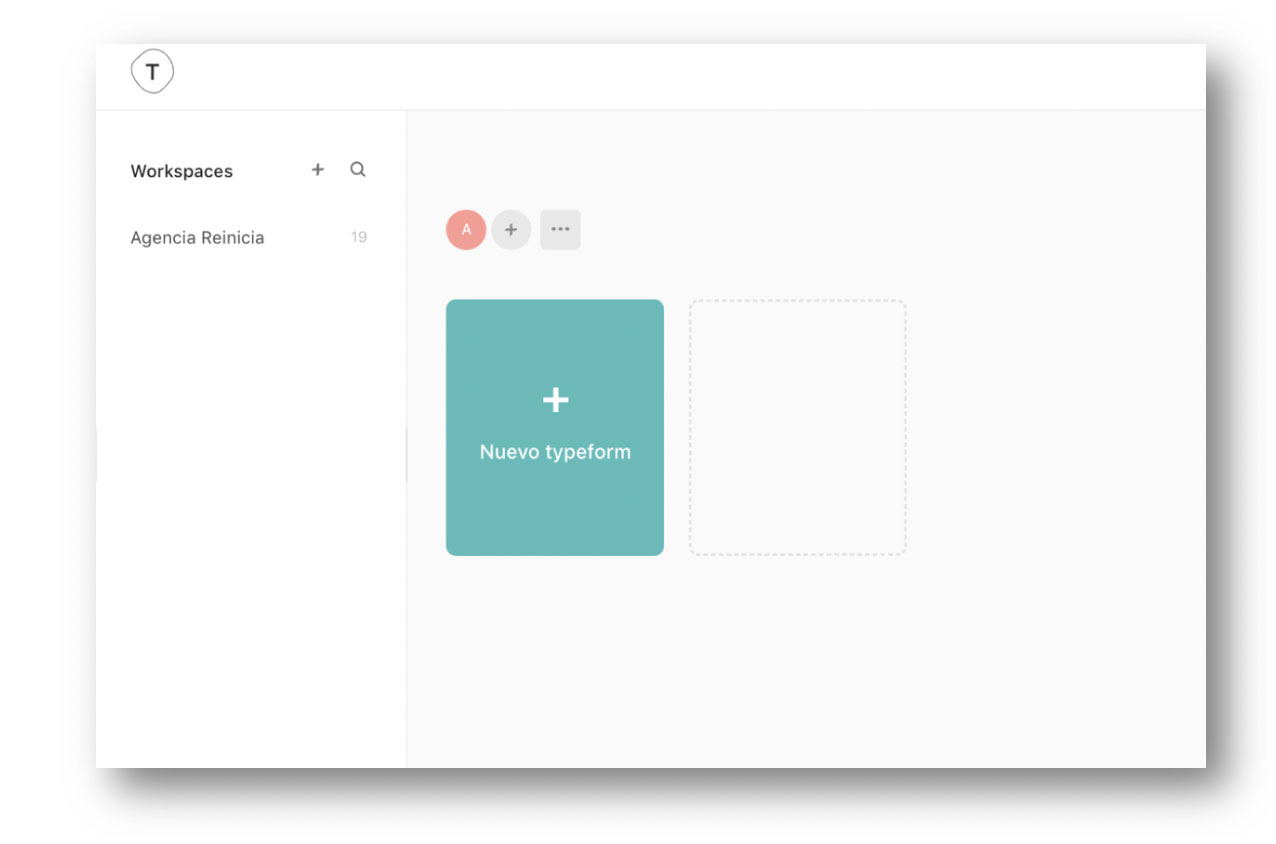
New typeform – now it gets interesting!
But let’s take a little tour of the types of templates offered by the platform. We should take ideas and not templates, since it will be difficult for them to fit our needs.
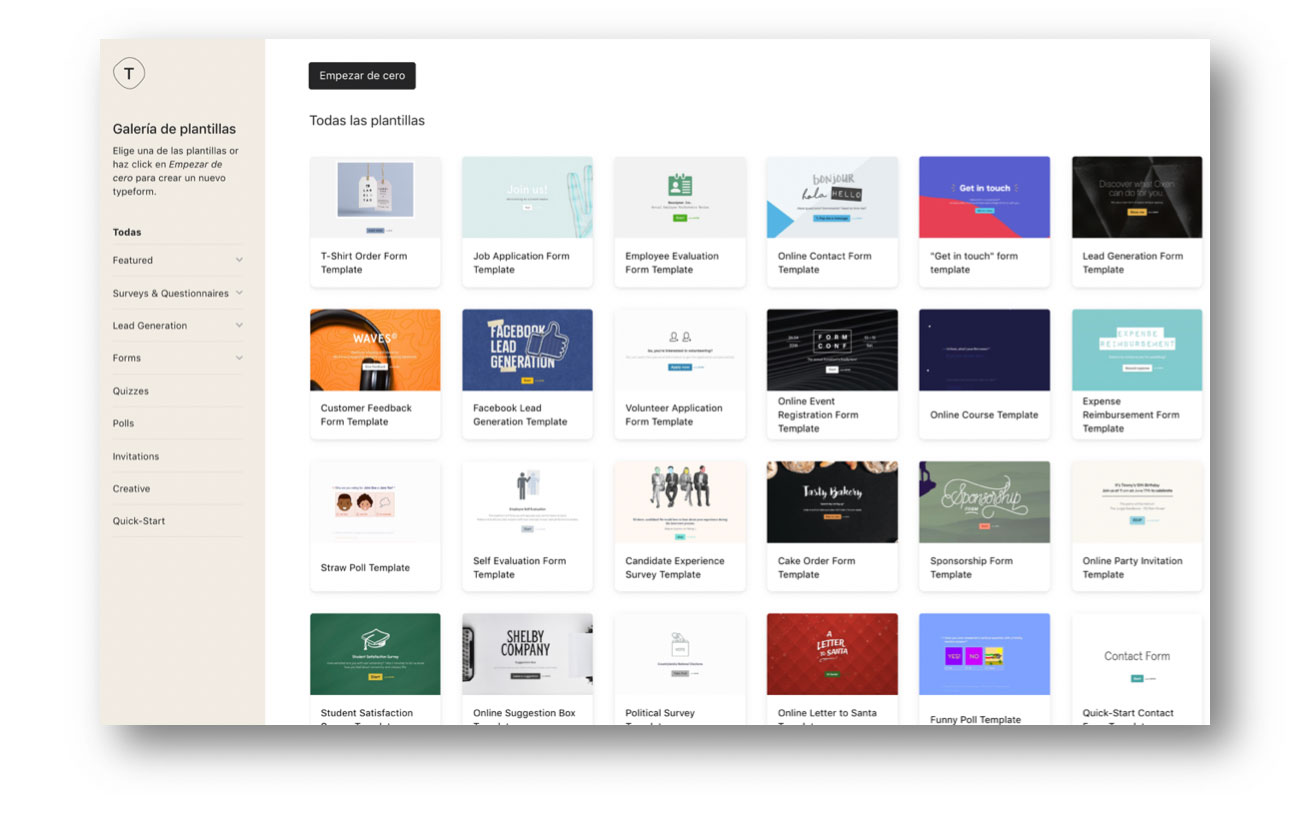
From satisfaction questionnaire feedbacks to trivia or registration forms. Designs that will give us interesting ideas to create our own template. Form creation.
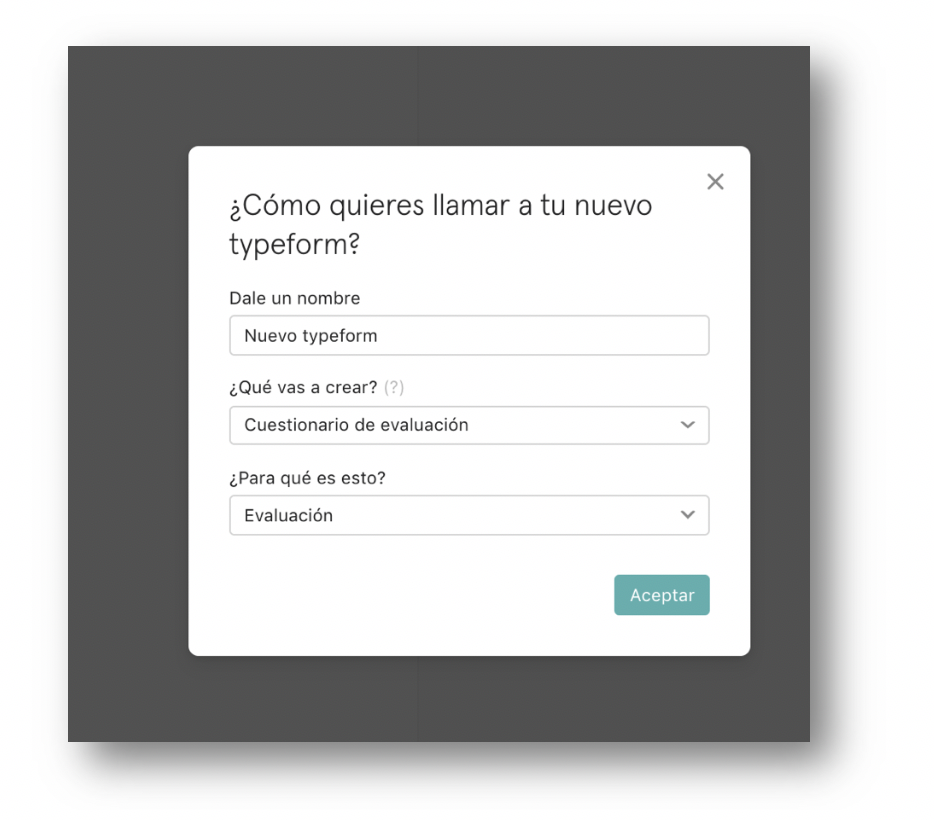
- When starting from scratch we will be asked:
- Name of the form
- What we will createAnd for what purpose
This data will provide us with some specificities of the tool and also information for your own statistics.
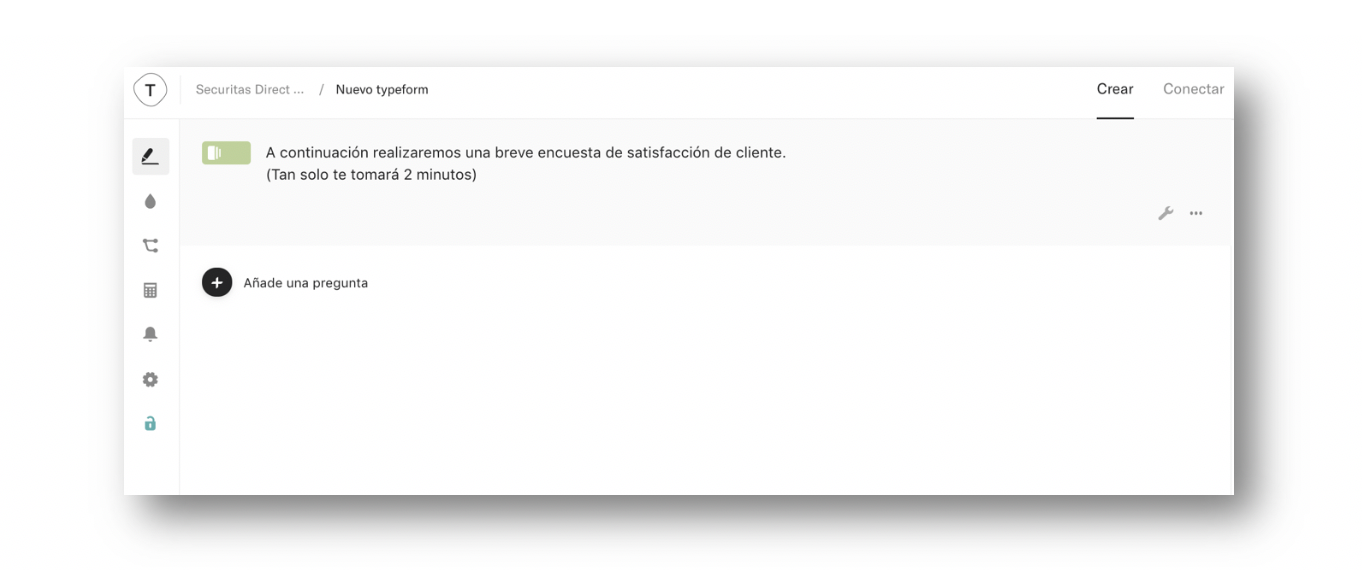
First question
The first question we choose always tends to be a splash screen.
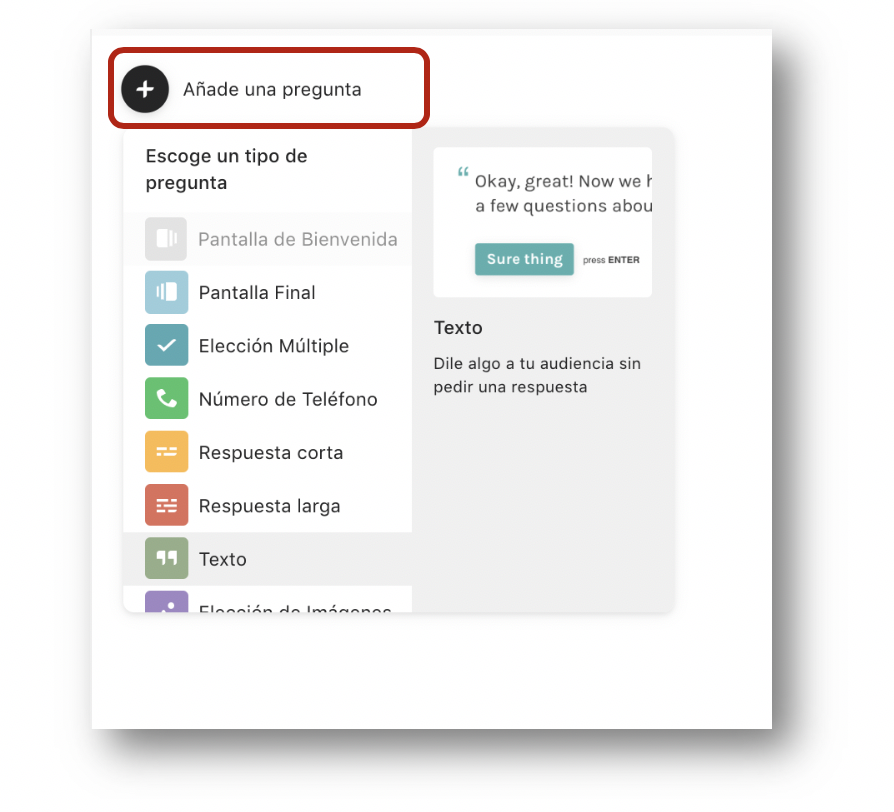
Clicking on “Add a question” displays a menu of question options that we will see in detail, their characteristics and when it is best to use them.
On the left, the tools that will be displayed if we click on the wrench allow us to configure the question we are going to create.
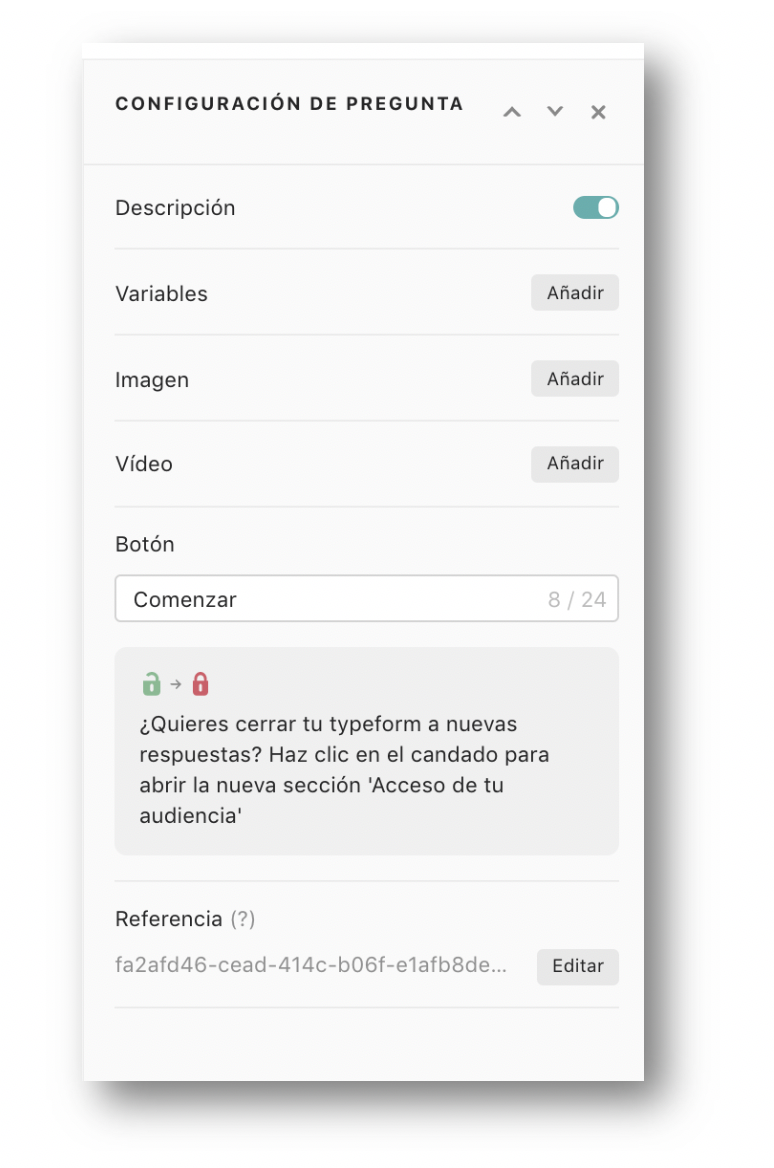
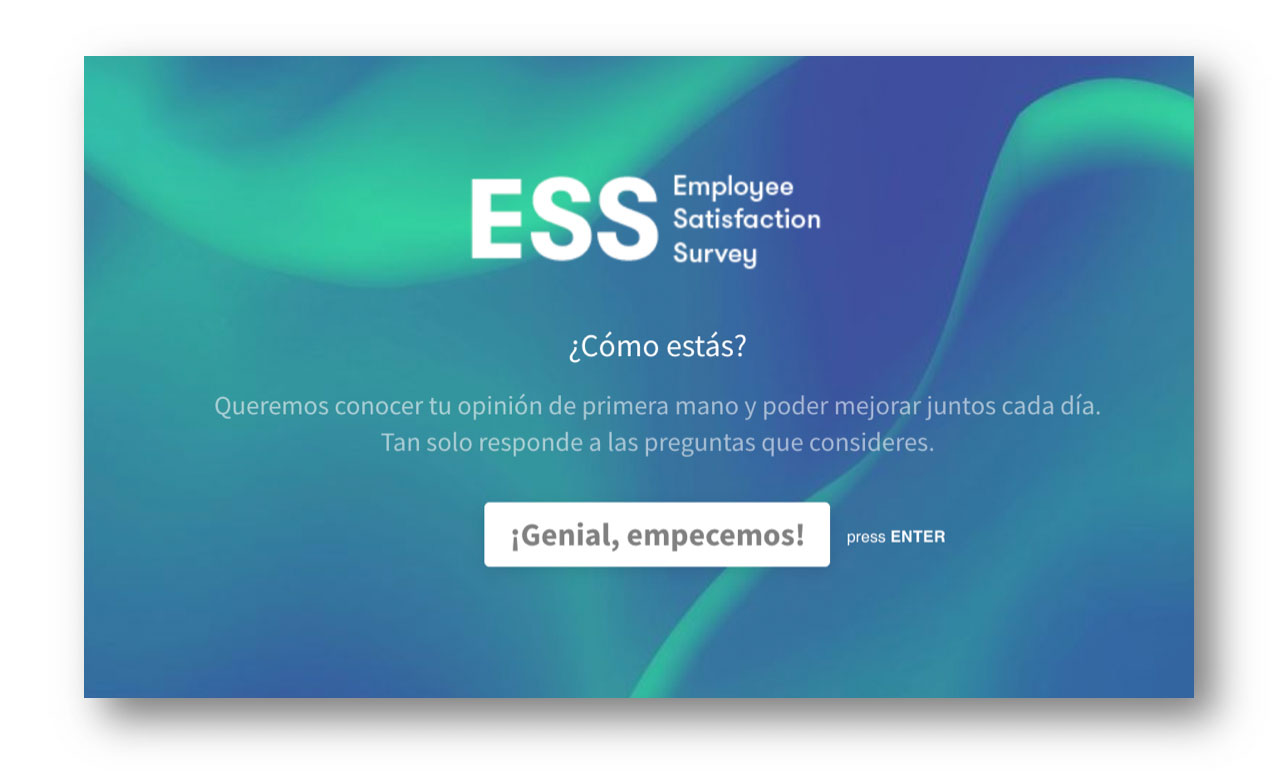
And what should we take into account when creating a “Welcome Screen”?
We will write in less than one line the essential and necessary information for the user. Therefore, we must be:
- Concisos
- Attractions
- Claros
Within the configuration options there is a tab where you can add a brief description. It is advisable to mention the time it takes to complete the questionnaire (always under 2 minutes).
In addition, we can add an image and a button to start. Choose a different and original phrase in the button to help or encourage user participation.
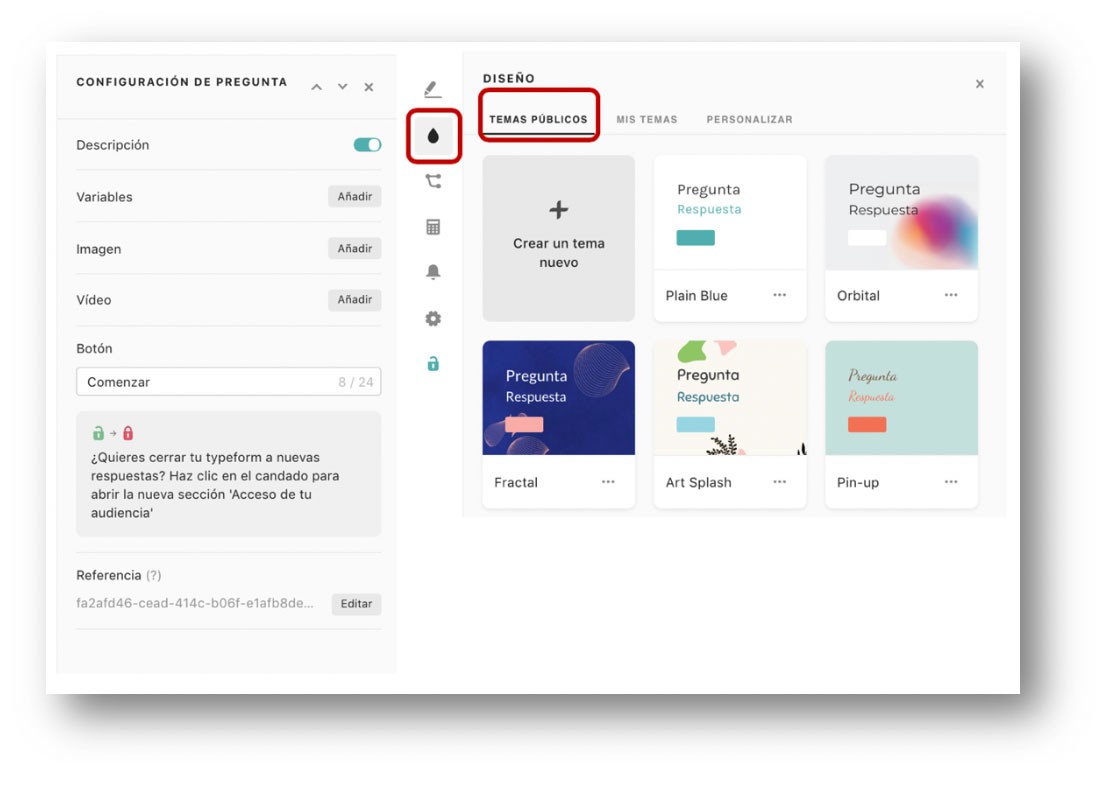
Form topics
We can switch to public themes which are none other than those previously seen, but Typeform now gives us a new opportunity to reconsider some designs.
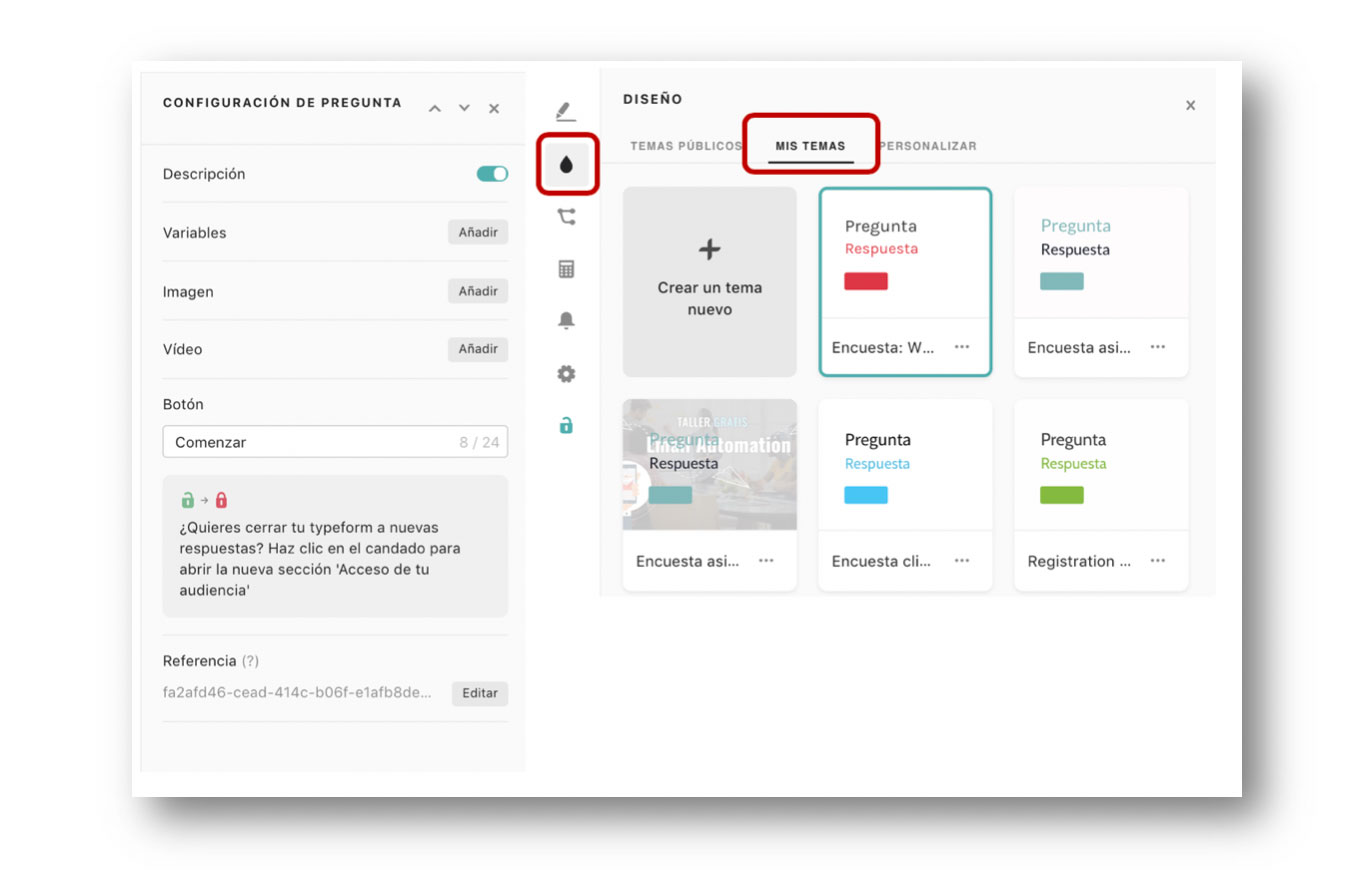
If we prefer, we can use themes that we have previously designed to follow the same corporate style that identifies the brand.
Finally, we can create our own design in which we can choose:
- Choice of typeface
- Question color
- Response color
- Button color
- Slide background
- Background image
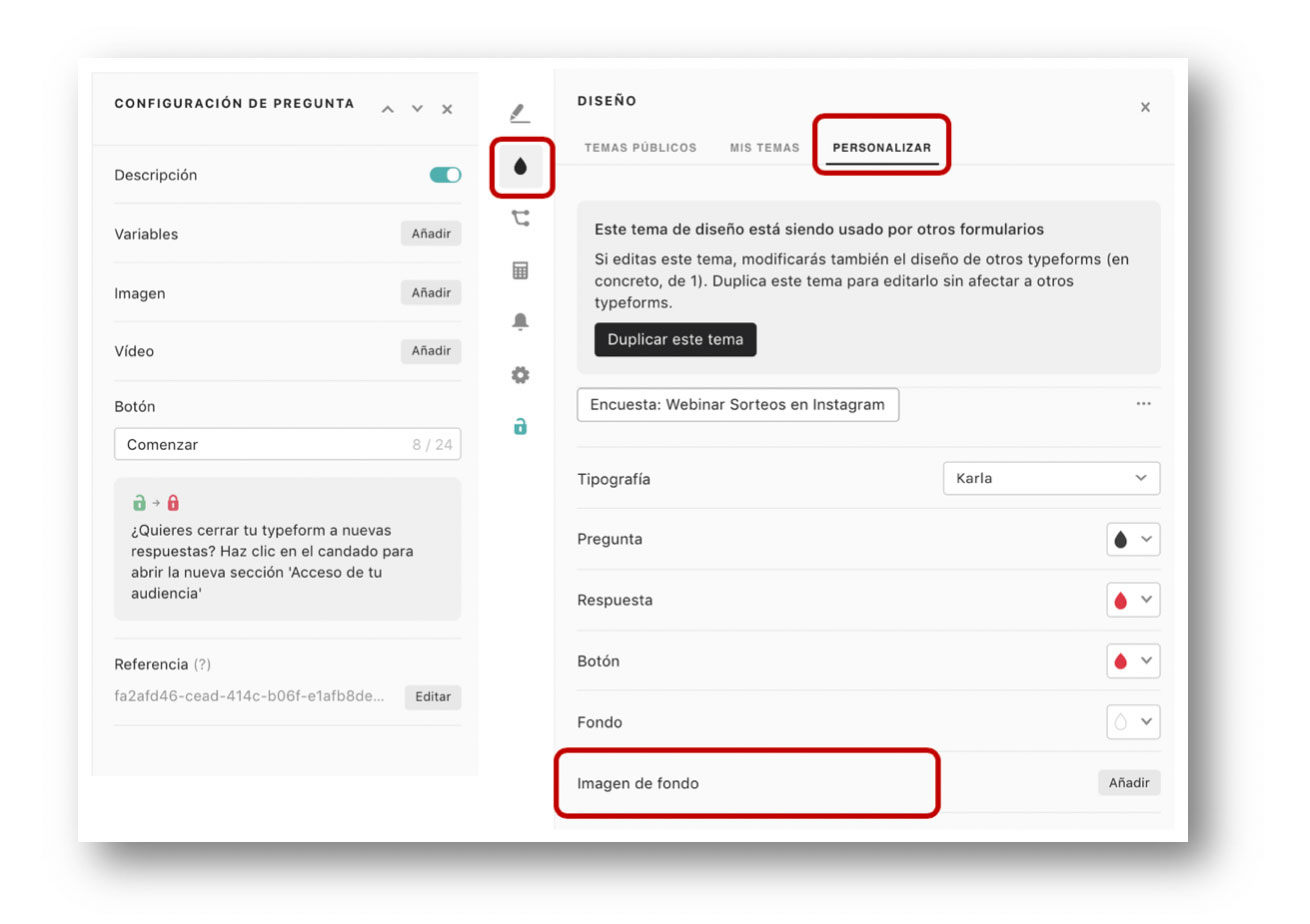
The background image we choose will be the one that appears by default in the whole form, so we must choose a neutral image that allows the user to keep the concentration on the questions and not on the image.
From here, it is time to add questions to our survey.
Types of questions in Typeform surveys
We will see that Typeform has a multitude of types with which we can easily assemble it.types of questions that we will find.
Welcome Screen
Make a good first impression!
Multiple Choice
Use this question type when offering a choice of answers to a question. You can also configure this type with multiple choice. In which the user will be able to answer several of the available options. It is ideal to know the types of products or services the user might be interested in.
Short answer
If what you need is a concise answer, use this type of questions. They are very common in questions where you are looking for a quick answer.
Long answer
If you are looking for a developed response, this is the block to use. If you do not set a character limit, the answers can be as long as your respondents write them. They are ideal for receiving feedback on a service and letting our contacts give their opinion.
Text
When you need to add something, but do not expect a response from your respondents, you should use this type. It allows you to add a phrase or an inspirational message and is ideal to make a small clarification to our contacts.
Choice of Images
This block is similar to the Multiple Choice block, but allows you a selection of possible answers as an image. There are some examples in the very original satisfaction survey templates. You can find out the customer’s satisfaction level by offering the options in facial expressions: very happy, happy, sad or angry.
Yes/No
Use this block for questions with yes or no answers.
Email
This type will only accept email addresses with the format xxxx@yyy.zzz. If someone tries to enter a response without email structure it will not be valid. It is a good way to qualify some of our contacts to confirm their email.
Opinion Scale
Allows users to give a rating from one to ten. You can customize the range in the option. If you are looking for the numerical value of satisfaction level, or the level of knowledge about a certain topic, use the Opinion Scale.
Score
Give your respondents a visual way to rate something. You can use star icons, crowns, etc.
Date
The Date block allows your respondents to select a date in the three most common formats:
Month-Day-Year
Year-Month-Day-Month
Day-Month-Year
Number
This is the type of question you should use if you expect a numerical answer.
Deployable
The alternatives to be chosen by the user are displayed. It is widely used in case there are more than 10 possible answers.
Legal
This block allows you to add a legal text or disclaimer to your typeform if you need your respondents to agree to your Terms of Use before submitting their answers. It can be accompanied by a custom text.
File upload
You need the user to upload specific content, pictures, documents, etc. This block offers them the possibility to upload images or files to share.
Checkout
If you have created a shopping cart or cart process, the checkout block allows you to make a secure payment through Typeform’s own platform.
Web address
It only allows the structure of a web address. If we need to know the web page or a web address of our users, it will only allow them to respond with the appropriate structure.
Final Screen
All typeforms end with a default Final Screen. The final screen can always vary depending on the responses. If the user is satisfied or we consider that they are not satisfied, we can offer them two final screens according to their level of satisfaction.
Another common use of the final screens is when taking a quiz, offering a type of final screen depending on the number of successes or failures committed.
Typeform’s hidden fields allow us:
- Personalize the form to whoever we send it to with their name.
- Identify the answers of the userwho has replied.
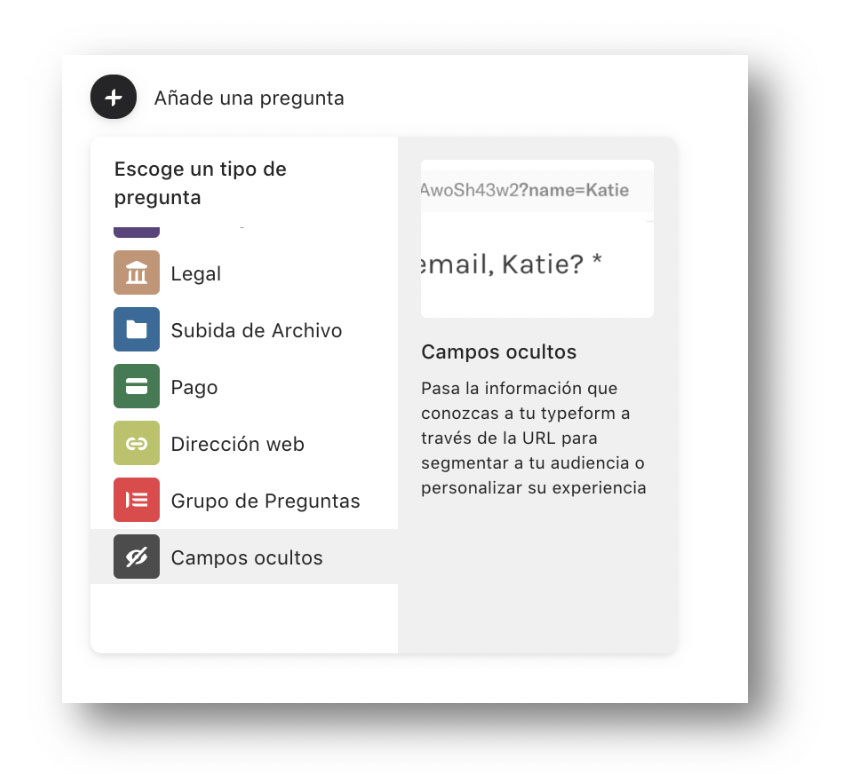
How to use it?
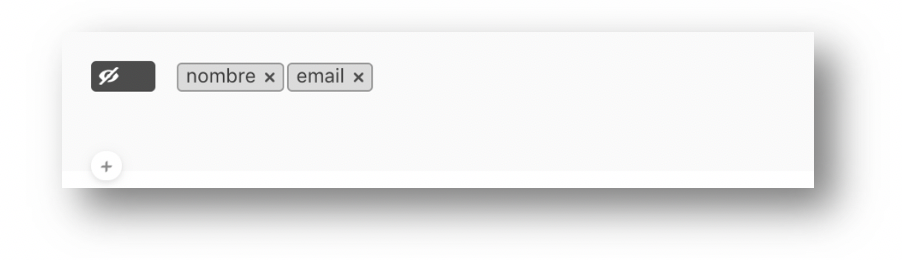
Let’s start with something simple, if we write “name” and “email” we can customize the form to whom we address and identify the user’s email with their answers, something that will allow us to synchronize the responses of respondents with their profiles in MailChimp.
Now we just need to integrate Typeform with Mailchimp to finish optimizing our database.