Index
- Roles vs. Profiles in Zoho CRM: The Difference Everyone Confuses
- Access Control Levels in Zoho CRM
- Step-by-Step Guide to Setting Up Profiles
- Step-by-Step Guide to Configuring Roles and the Hierarchy
- Field-Level Sharing and Security Rules
- Territories in Zoho CRM: Access Control for Sales Teams
- Zoho for Everyone: Access Control Beyond Sales
- Common Mistakes When Configuring Roles and Permissions (and Best Practices)
- Frequently Asked Questions About Roles and Permissions in Zoho
As a company grows, the question shifts from “Who can use the CRM?” to“Who can view and do what within the CRM?” Properly configuring roles and permissions in Zoho CRM is what separates a secure, well-organized system from one where anyone can view the entire customer portfolio or access fields they shouldn’t. If you’re still evaluating the tool, this article assumes you already know how Zoho CRM works; here , we’ll jump right into managing access. This is the complete, step-by-step guide to getting it set up right from day one.
Roles vs. Profiles in Zoho CRM: The Difference Everyone Gets Confused About
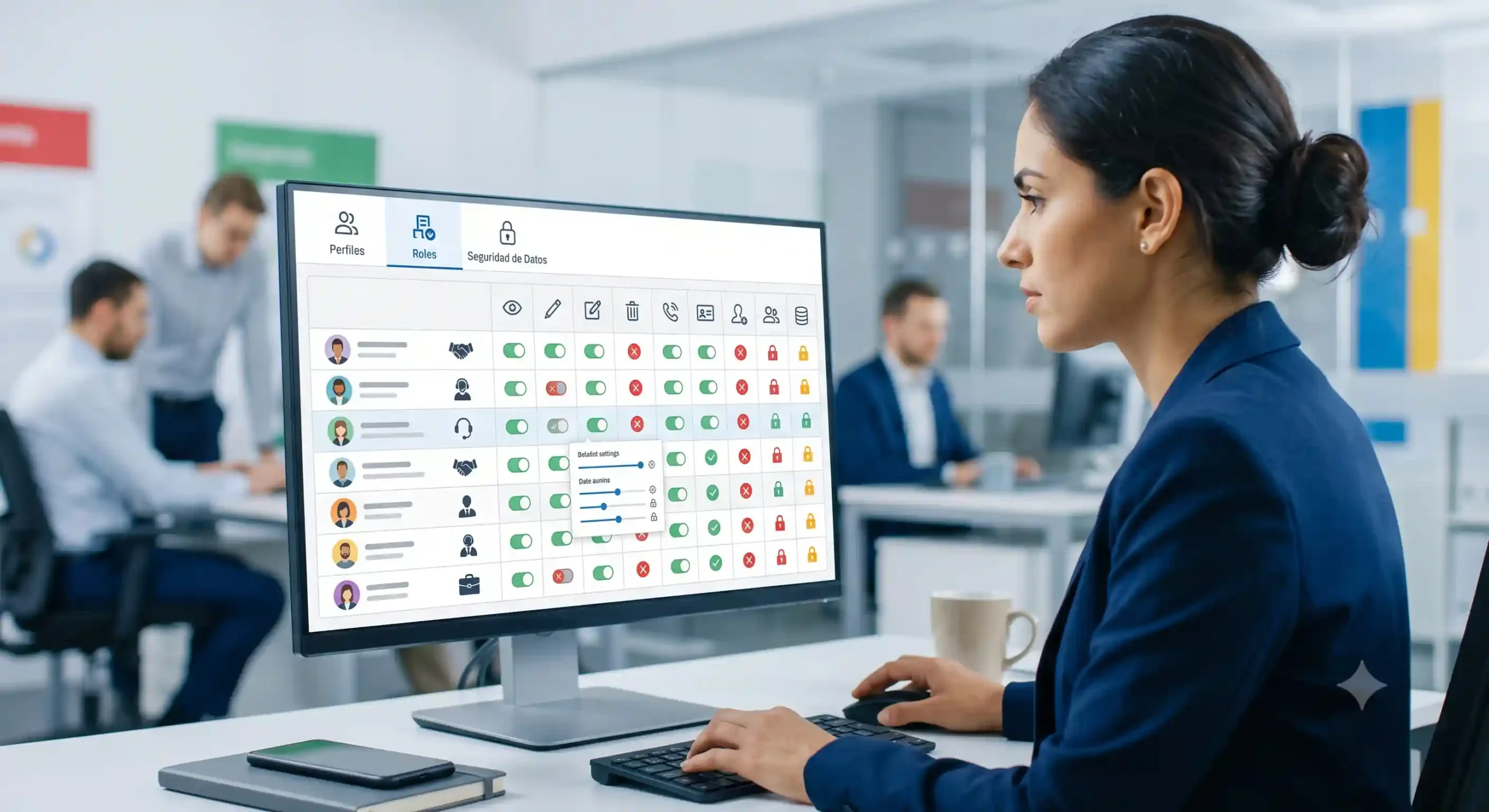
This is the point that confuses almost everyone, so let’s start here. In Zoho CRM, roles and profiles are not the same thing and address different questions:
- A profile defines what a user can do: which modules they can access, what operations they can perform (create, edit, delete, export), and what administrative functions they have. It is the “action permission.”
- A role defines what data a user can view, based on their position in the company hierarchy. It is the “view permission.”
In other words: two sales reps can share the same profile (they perform the same tasks in the CRM) but have different roles, so that their sales manager—a higher-level role—can view both of their records, while they cannot view each other’s. Understanding this distinction between roles and profiles in Zoho CRM is the foundation for everything else.
Access Control Levels in Zoho CRM
Zoho CRM controls access through several layers that work together. It’s a good idea to review them before making any changes: profiles (what actions are allowed), roles and their hierarchy (how far down the hierarchy a user can see), data sharing rules (the default access level for the entire organization and its exceptions), field-level security (which specific fields each profile can view or edit), and, for sales teams, territories. The key is to understand that these layers combine: a user’s final access is the sum of what their profile, role, and sharing rules allow.
Step-by-Step Guide to Setting Up Profiles
Profiles are the first setting you should keep locked, because they determine what each person can access.
Default Profiles (Administrator / Standard) and Why Clone Instead of Edit
Zoho CRM comes with two built-in profiles: Administrator (full control) and Standard (basic operational access). The golden rule: don’t edit the default profiles; clone them instead. Duplicate the Standard profile, give it a name that describes the role (“Sales,” “Marketing,” “Support”), and customize that clone. This way, you always have a clean baseline to fall back on and avoid accidentally breaking permissions.
Permissions at the module, record, and field levels
Within each profile, you define access in detail: at the module level, you decide whether the profile can view Contacts, Negotiations, etc. and what actions they can take in each one; at the record level, which operations are allowed (create, edit, delete, export); and at the field level, which specific fields are visible or editable. Tailoring these Zoho CRM profiles to each person’s actual role—just as you tailor modules and views to your type of business, as we saw when discussing CRM types and strategy—is what keeps the system organized.
Step-by-Step Guide to Configuring Roles and the Hierarchy
Now that the profiles are ready, it’s time to define who can view whose data. This is governed by the role hierarchy.
Create the role hierarchy (example: CEO > Sales Director > Sales Representative)
Learning how to create roles in Zoho CRM is simple: you build a tree that replicates your organizational chart. At the top is the CEO; below that is the Sales Director; and below him are the sales representatives. Each role can see its own records and those of all roles below it, but not those of its peers or those above it. Always start with the company’s actual organizational chart and map it exactly to the role hierarchy in Zoho.
Role Hierarchy vs. Subordinate Hierarchy (When to Use Each)
Zoho distinguishes between sharing data “by role” and “by role and subordinates.” Use “role” when you want access to be limited to a specific position, and “role and subordinates” when you want that access to extend to their entire team as well. It’s a small distinction with major consequences: making the wrong choice here is the most common reason why someone might “see too much” or “see too little.” Decide for each rule whether access should be propagated downward or not.
Field-Level Sharing and Security Rules
By default, Zoho CRM uses an organizational access model that you can set to ” private ” (where each user sees only their own information and the hierarchy takes precedence) or a more open model. The general recommendation is to start with “private” and set up sharing rules only where necessary—for example, so that the entire support team can view support tickets even if they aren’t directly under each other in the organizational hierarchy.
Added to that is field-level security: even if a user views the Negotiations module, you can hide or block sensitive fields—such as margin or commission—from them. Combining default private access, specific sharing rules, and protected fields gives you very fine-grained control over users and permissions in Zoho CRM.
Territories in Zoho CRM: Access Control for Sales Teams
When the sales organization doesn’t fit into a single organizational chart—because you sell by geographic region, product line, or segment—the hierarchy of roles falls short. That’s where territory management comes in: a second access model, based on account criteria (country, industry, size…), that distributes records among teams according to rules, rather than the organizational chart. A single customer can thus be visible to both the team in their geographic area and the team for their product line at the same time. It’s the right tool for complex sales structures.
Zoho for Everyone: Access Control Beyond Sales
Access control is no longer just the sales team’s responsibility. With the “Zoho for Everyone” (or “CRM for Everyone”) approach, the CRM is opening up to other departments—marketing, operations, logistics, and after-sales—which are now working with the same data. And that requires rethinking who can see what.
This is where Team Spaces come in: they allow each team to manage its own modules, its own records, and its own delegated administration—all within the same CRM and without stepping on each other’s toes. Each space has its own scope and permissions, so that marketing doesn’t see—or touch—what’s exclusive to sales, and vice versa, while management maintains the big picture. It’s the natural evolution of access control when the CRM stops being a tool for a single department and becomes the backbone of the entire company—especially if you’re using the full Zoho One suite.
Common Mistakes When Configuring Roles and Permissions (and Best Practices)
These mistakes are repeated from one company to another. The most common ones: editing default profiles instead of cloning them; granting administrator access “to keep things simple,” which creates a security hole; confusing roles with profiles, which leads to people doing things they shouldn’t or not seeing what they need to; and failing to review access permissions when someone changes positions or leaves the company.
Best practices reflect these mistakes: always start with “private” and only grant the necessary access; create a copy before editing; apply the principle of least privilege (giving each person only the access they need for their work); and review roles and profiles on a regular basis. And if the access model is complex, lean on a partner: at Reinicia, we set it up for you as part of our CRM consulting services.
Frequently Asked Questions About Roles and Permissions in Zoho
What is the difference between a role and a profile in Zoho CRM?
A profile controls what a user can do (modules, operations, fields); a role controls what data a user can view based on the hierarchy. Profile = actions; role = visibility.
How many roles and profiles can I create?
It depends on your Zoho CRM edition. Higher-tier editions allow for a greater number of custom profiles and roles; in the basic editions, the scope is more limited. Check your plan’s limits before designing a very large hierarchy.
What are territories in Zoho CRM?
These are record-allocation models based on account criteria (region, sector, product), designed for sales teams whose structure does not fit into the role hierarchy. They are available in the advanced editions.
In which plans are roles, territories, etc., available?
Basic roles and profiles are available in virtually all editions; advanced features such as field-level security, territory management, and team spaces are enabled in higher-tier editions. If you want to implement it properly, we at Reinicia can help you as an official Zoho partner.