Index
Getting started with Zoho Flow
If you run a business, you probably spend the day jumping from one application to another. An email here, a note in the CRM there, something in the spreadsheets…. Sound familiar? Well, Zoho Flow is the solution to automate all these tasks.
Imagine that when a new customer arrives at your online store, their CRM record is automatically created, a welcome email is automatically sent to them and they are added to your targeted marketing list. All without you having to lift a finger. That’s -among many other things- what you can do with Zoho Flow automation.
This tool connects more than 1000 different applications and makes them work together as one. You don’t need to know how to program or be a technology expert. You just tell it what you want to happen when something specific happens, and Zoho Flow takes care of the rest. Whether you need to synchronize your CRM with Google Sheets spreadsheets, Zoho sheets or Drive documents, Zoho Flow will allow you to synchronize different data sources, process them and display them in a customized way.
The best part is that you save time, reduce errors and can focus on what really matters in your business: growing sales and taking care of your customers.arial, so by combining it with Zoho CRM you get a very versatile tool, with which you can automate responses, send personalized offers and, most importantly, not lose any potential customers.
Zoho Flow replaces tools such as Zapier and other webhooks at no extra cost
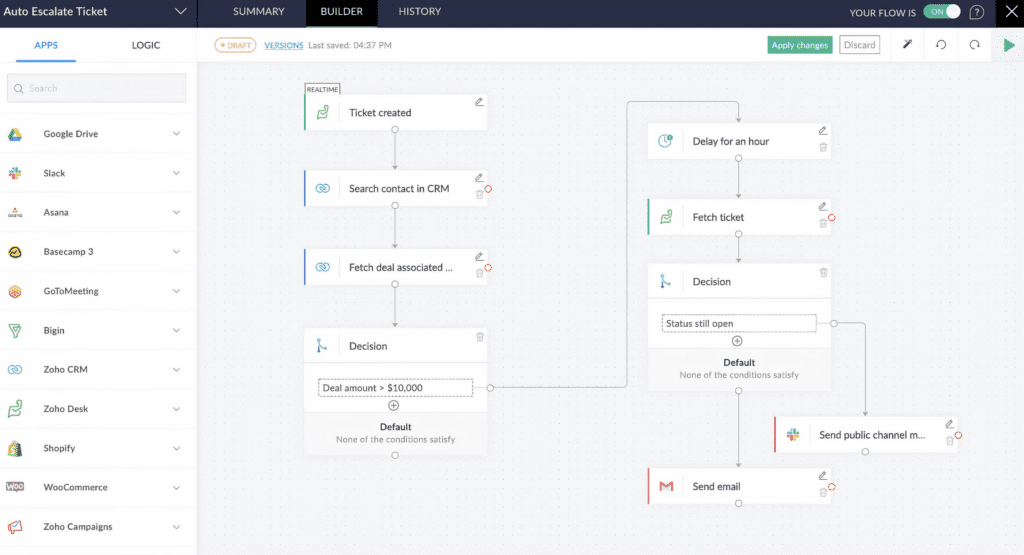
What is Zoho Flow and how it works
Zoho Flow is like a conductor for all the applications you use in your business. Its job is to make them all play the same music at the same time.
It works very simply: you create what is called a “flow”. This is nothing more than a recipe that says “when this happens, do that”. For example: “when someone fills out the contact form on my website, add them to my CRM and send them an automatic email”.
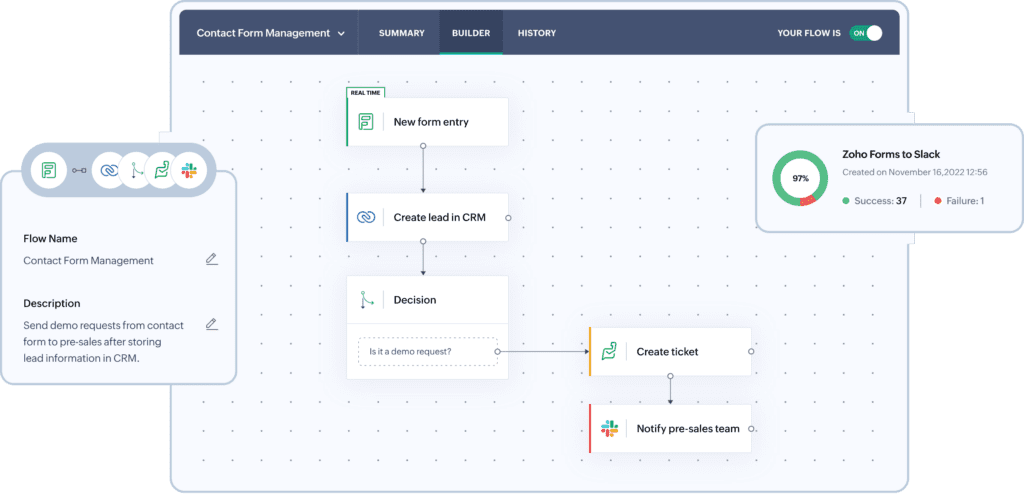
The magic is in the system of triggers and actions. The trigger is what starts the whole process: it can be a new email, an order in your online store, or someone downloading a file from your website. The action is what you want to happen next: send a message, create a record, update data, etc.
Best of all, it has a visual interface where you literally drag and drop the elements. It’s like making a flowchart, but it actually works. You can see the whole process at a glance and modify it whenever you want.Zoho Flow can also make decisions. You can look at the data you receive and decide what to do based on different conditions. If the customer is from Madrid, do one thing. If he’s from Barcelona, do another. It’s as simple as that.
At Reinicia we are specialists in Zoho Flow
Connectable applications
One of the great advantages of Zoho Flow is the incredible amount of applications you can connect. There are more than 1000, so it is very likely that the tools you already use are available.
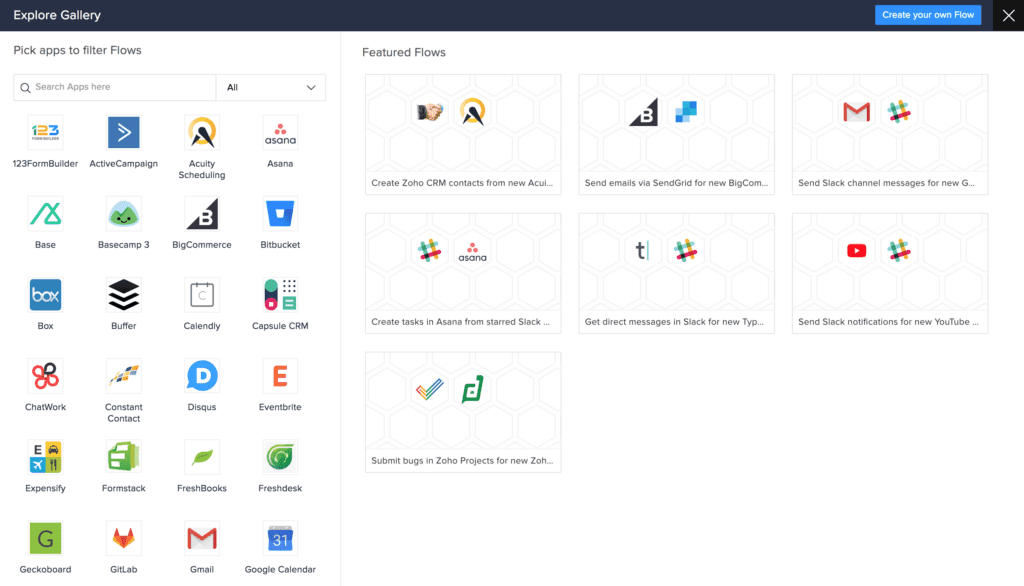
Zoho applications Of course, all Zoho applications work seamlessly with Flow. Zoho CRM, Zoho Books, Zoho Desk, Zoho Calendar, Zoho Mail… If you already use the Zoho ecosystem, automation is super easy.
Popular work tools You can also connect Gmail, Google Drive, Google Calendar, Microsoft Office 365, Slack, Trello, Asana, Monday and many more. Basically, all the apps you use every day for work.
Online stores and ecommerce Shopify, WooCommerce, BigCommerce, Amazon, PayPal, Stripe… If you sell online, you can automate from order arrival to post-sale tracking.
Marketing and social networks Mailchimp, Hubspot, Facebook, X, Instagram, LinkedIn… You can automate your marketing campaigns and make everything connected.
Accounting and finance applications QuickBooks, Xero, PayPal, Stripe, and of course Zoho Books. Perfect for automating invoicing and payment tracking.
Customer service tools such as Zendesk, Freshdesk, Intercom… You can create flows that improve your customers’ experience from the first contact.
If by chance your favorite application is not on the list, Zoho Flow also allows you to connect any service that has open APIs using webhooks.s business, solutions like Zoho Social or Zapier usually work well and suffice.
Examples of automations
I’m going to tell you some practical examples of automation you can do with Zoho Flow so you can see the real potential.
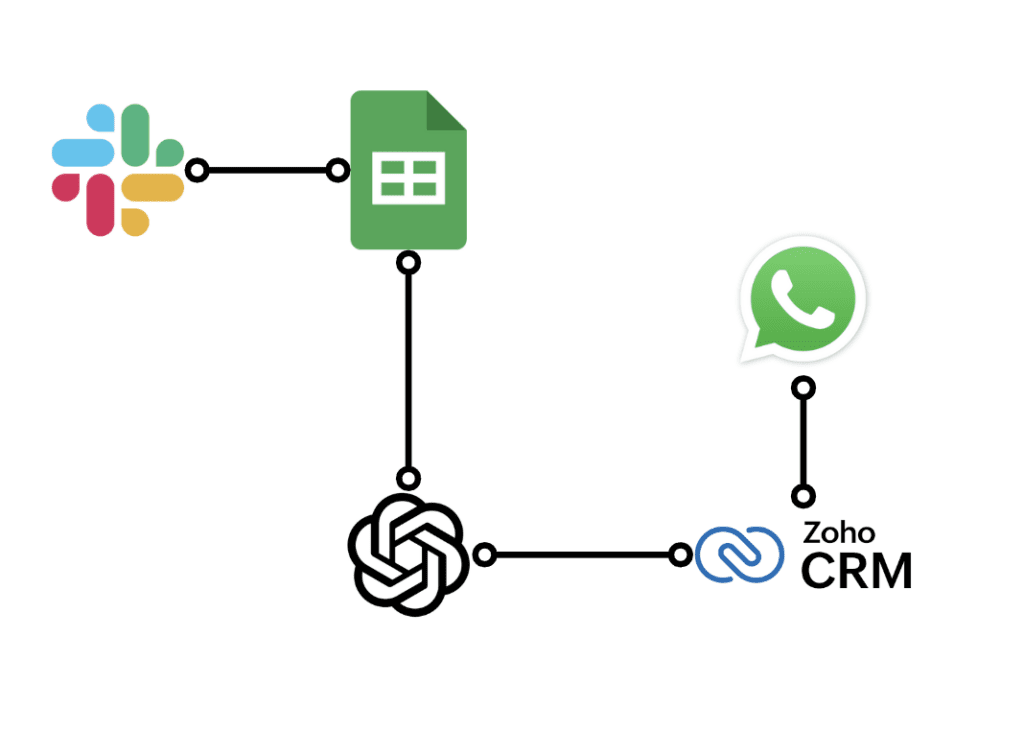
This diagram shows how from the Slack chat we can extract information to a Google Sheet about one of our projects, extract from it information with GPT Chat that brings us value such as budgets or agreed dates and synchronize it with Zoho CRM automatically. At the same time, we can include the conversations we have had through messaging platforms such as Whatsapp and store it in our CRM so that everything is automatically collected.
Can you imagine being able to automatically reflect all conversations in Whatsapp, chats, and documentation in the customer file?
For online stores: when someone buys from your store, you automatically create a record in the CRM with all the order information, send them a personalized confirmation email, and if it is their first purchase, they are added to a sequence of welcome emails. You can also have a task created in your project manager to prepare the shipment.
For professional services: when a potential customer fills out your contact form, a follow-up task is automatically scheduled in your calendar, a deal is created in the CRM, and an email is sent with relevant information. If they don’t respond within a week, another reminder is automatically scheduled.
For teams: when a new urgent task is created in your project manager, a message is automatically sent to the team’s Slack channel and an event is created in the managers’ calendar. You can also have a dashboard with project metrics updated.
For marketing: when someone downloads an ebook from your website, they are automatically added to a specific email marketing list, tagged in the CRM according to their interests, and start receiving a sequence of content related to the topic.
For customer service: when an urgent support ticket arrives, the available agent is automatically assigned, an SMS is sent to the person responsible for the area, and a note is created in the customer’s CRM with all the information about the problem.
For accounting: when an invoice is marked as paid in your billing system, it automatically updates the status in the CRM, sends a thank you email to the customer, and creates a record in your revenue tracking spreadsheet.
How to create your first flow step by step
1. Plan what you want to automate: before entering the tool, think well what process you want to automate. Write it down simply: “When X happens, I want it to do Y”. For example: “when someone registers on my website, I want them to be added to my CRM and receive a welcome email”.
2. Log in to Zoho Flow: log in to your Zoho account (if you don’t have one, you can create a free one) and search for Zoho Flow in the apps menu. If you have Zoho One, it is already included.
3. Create a new flow: click on “Create flow” and you will see a blank screen with a “+” button in the center. This is where your automation will start.
4. Choose the trigger: click on the “+” and select the application that will start the process. For example, if you want it to start when someone fills out a Google Forms form, search and select Google Forms. Then choose which specific event (new answer, new row in spreadsheet, etc.).
5. Connect your Zoho Flow account: you will be asked for permission to connect to the application of your choice. Just follow the steps to give authorization. It is safe and necessary for it to work.
6. Configure the trigger: specify exactly what you want to activate the flow. If it is a form, choose which one. If it’s a spreadsheet, select the right one. Zoho Flow will show you options to make it very specific.
7. Add the first action: after the trigger, add what you want to happen. It can be creating a contact in the CRM, sending an email, creating a task… Choose the application and the specific action.
8.: Map the data: this is the most important part. You have to tell Zoho Flow which information from the trigger goes to which field of the action. For example, the form email goes to the CRM email field. The tool helps you a lot with this.
9. Test the flow: before activating it, do a test. Zoho Flow allows you to send test data to see if everything is working properly.
10. Activate and monitor: if everything goes well, activate the flow and start working. You can see in real time what is happening and if there are any errors.
Mistakes to avoid
After using Zoho Flow for a while, we’ve reviewed what works easily, but also the points where you might get stuck. I’ll tell you the most important tips.
Start with the easy stuff: the most common mistake is to try to automate very complex processes from day one. Start with something basic, like connecting a form to your CRM. Once it works well, you can add more steps.
Map the fields well: make sure the information goes to the right place. If the form’s phone number goes into the CRM’s email field, it will be a mess. Take the time to check that each piece of information goes where it should go.
Use descriptive names: callyour flows with names that explain what they do. Instead of “Flow 1”, better “New web leads to CRM”. In six months you will thank yourself.
Test before activating: alwaystest before putting a flow into operation. Zoho Flow has tools for this. It is better to discover bugs before they affect real customers.
Don’t automate everything at once: It’s tempting to want to automate your entire business all at once, but it’s better to take it one step at a time. Automate one process, give it time to work well, and then move on to the next.
Review flows regularly: applications change, processes evolve. Review your flows from time to time to make sure they continue to work as expected.
Beware of infinite loops: avoid creating flows that trigger each other endlessly. For example, if one flow updates a record in the CRM and another flow is triggered when that record is updated, you may create a loop that never ends.
Control limits: each Zoho Flow plan has limits on the number of executions per month. Watch that you don’t run out of credits at important times.
Document your flows: writea description of what each flow does and why you created it. If you work in a team or need to modify something in the future, it will be very useful.
Create a contingency plan: set up what should happen if something goes wrong. Do you get a notification? Does it automatically retry? Think about scenarios where something can go wrong.
With Zoho Flow, automating your business is within anyone’s reach. You don’t need to be an expert in technology, you just need to be clear about which processes take up your time and want to optimize them. Once you start automating tasks, you’ll ask yourself
At Reinicia we are specialists in Zoho Flow