In the digital era in which we live, paper surveys are no longer a good alternative, as it is a slow and impractical process and except on rare occasions such as face-to-face events, an online survey is more likely to be completed by more users. In addition, in online surveys all the data are collected in an orderly way in the cloud, so they are much easier to manage than their paper version, and environmentally and economically they represent a significant saving. One of the easiest ways to send a survey to your customers is through email marketing. Below, we will see how to create a survey in Google Forms and then send it to your database through the Mailchimp tool.
Create a survey in Google Forms
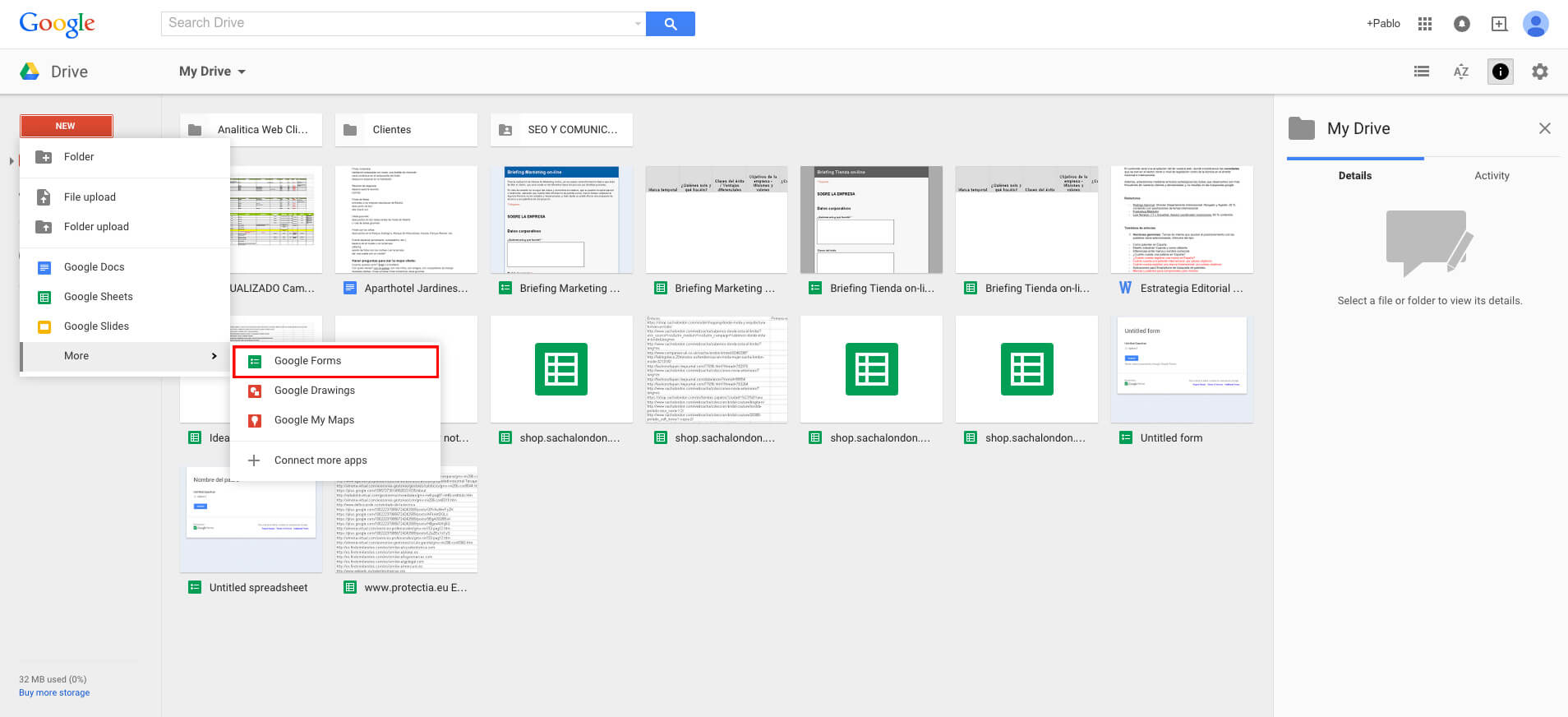
The first thing we will have to do is to create the digital survey and for this, we will use Google’s tool: Google Forms. It is a simple and effective tool that will allow us to direct our users to the questionnaire through a link. We will enter our Drive account and create our survey by selecting New –> Google Forms.
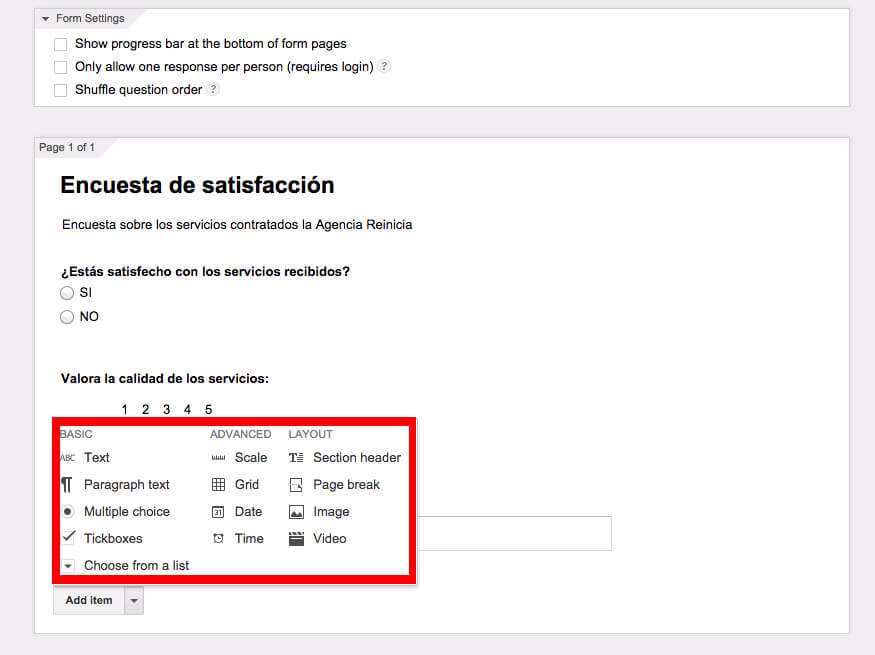
Then we can start editing our survey. It is a very simple and intuitive tool and it will not take you more than 20 minutes to create a complete form. We can add different elements by clicking “Add item”. There is a wide variety of fields available depending on the type of question we want to ask: Text, scale from 1 to 5, multiple-choice questions, etc.
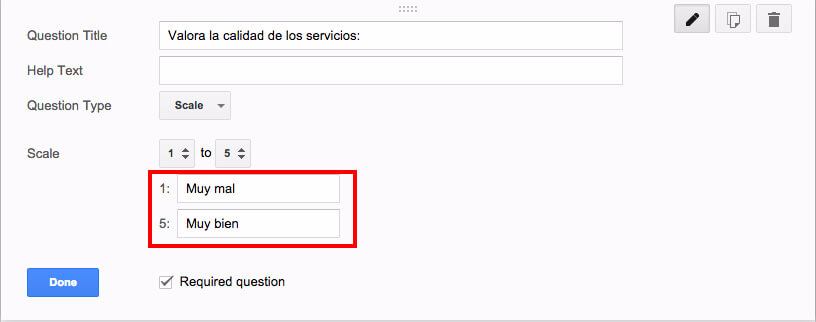
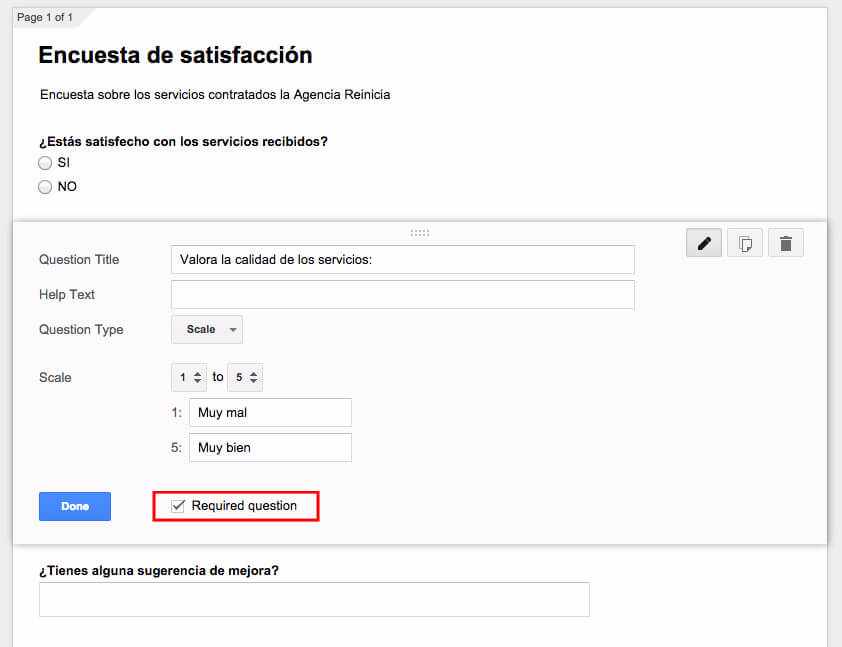
In the case of rating our services with a scale from 1 to 5 for example, it is advisable to specify which value refers to the lowest rating and which to the highest so that there is no room for misunderstanding: 1 –> Very bad; 5 –> Very good.
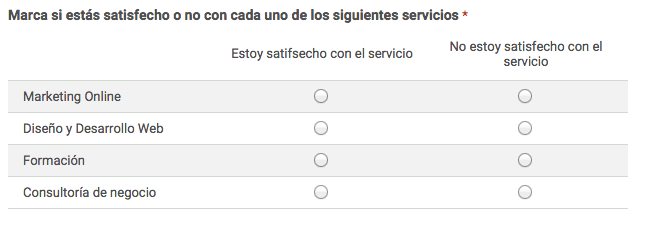
The easier we make it for the user, the more likely he/she is to answer the form. For this purpose, closed questions, for which we offer several options from which the user has to choose one or more, work better than open questions that require the user to write his answer and therefore more time. In addition, this type of question will facilitate the subsequent processing of the information. For example, a table with several options works very well, since we offer concrete answers that the user simply has to select.
If we want to mark a question as required, we must mark it as required when we are creating it. It is advisable to mark as required those questions whose answer we strictly need -a contact email, a name-. If we mark too many boxes as required, there is a chance that some users will end up not answering the survey.
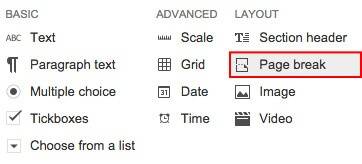
We can also split the survey into several pages by selecting Page Break. We recommend using this survey only if our survey is divided into distinct parts: service rating, improvement ideas, etc.; otherwise it may lead to confusion.
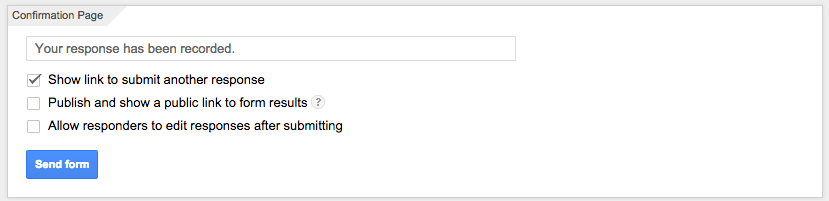
Once the survey is completed, we can define some settings such as publishing the survey responses to be public or allowing respondents to edit their answers once the form is completed.
Some tips for conducting a good survey
- For a survey to be effective, it must contain the right number of questions. Never make surveys too long because it will considerably reduce the number of users who are willing to fill it out. Ask only what you really need to know.
- Don’t ask questions that are too long, be clear and concise. In general, people are reluctant to answer surveys, and if they do, they prefer not to have to think too much. Therefore, don’t include questions that are several paragraphs long because users are unlikely to read them. A sentence or two at most is more than enough.
- Avoid open-ended questions. As mentioned above, a simple survey with multiple-choice questions from which the respondent has to choose one or more is much more effective than an open-ended question for which the user has to write an answer and spend considerable time on it.
- Address only one issue in each question and arrange the content in an orderly fashion.
- Give your survey a name and write a brief description of its content so that the user knows what it is about.
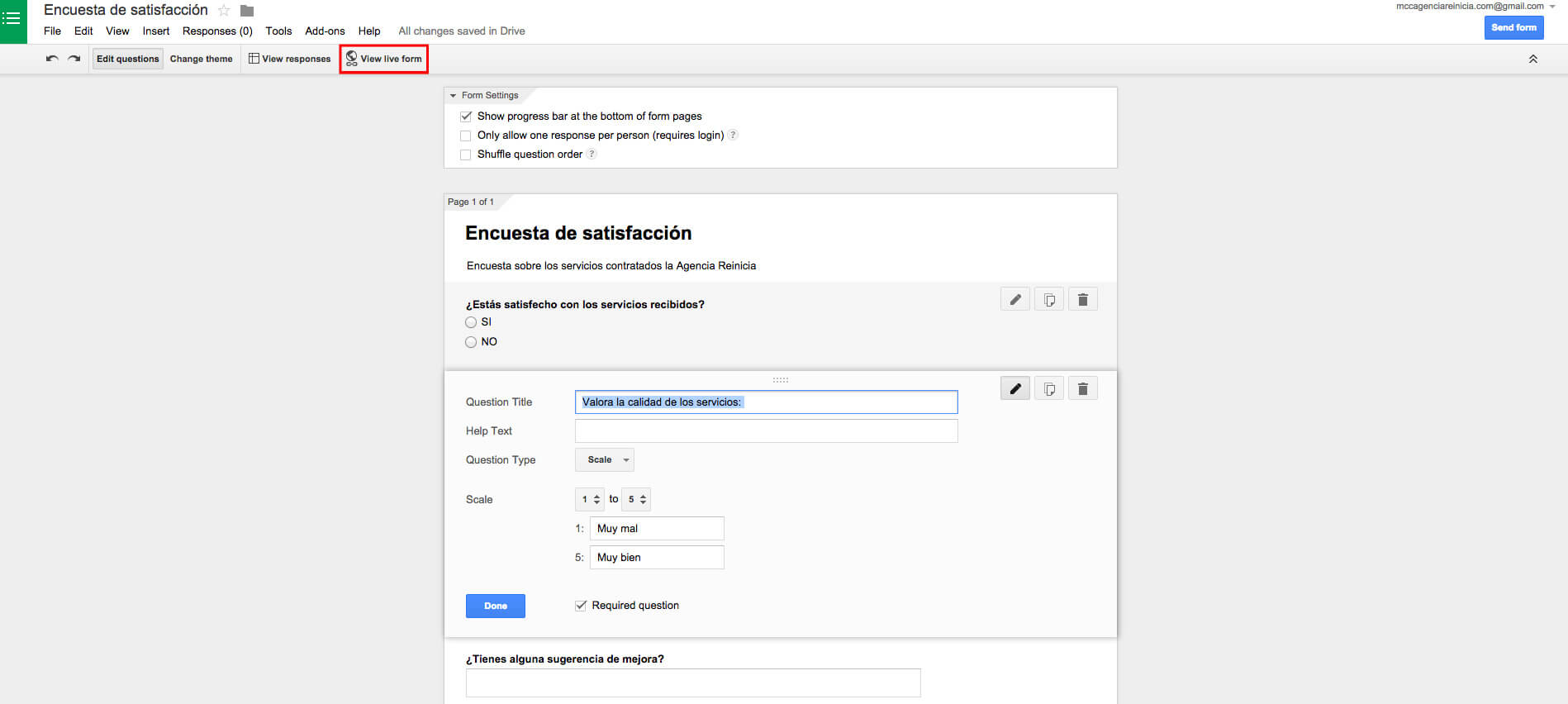
The answers will be recorded in a Google Sheets, indicating the date and time they were filled in, and we will be able to export them at any time. To obtain the link to the survey that we will need later to add to the newsletter, click on the view live form button and copy the URL.
How to send a survey with Mailchimp?
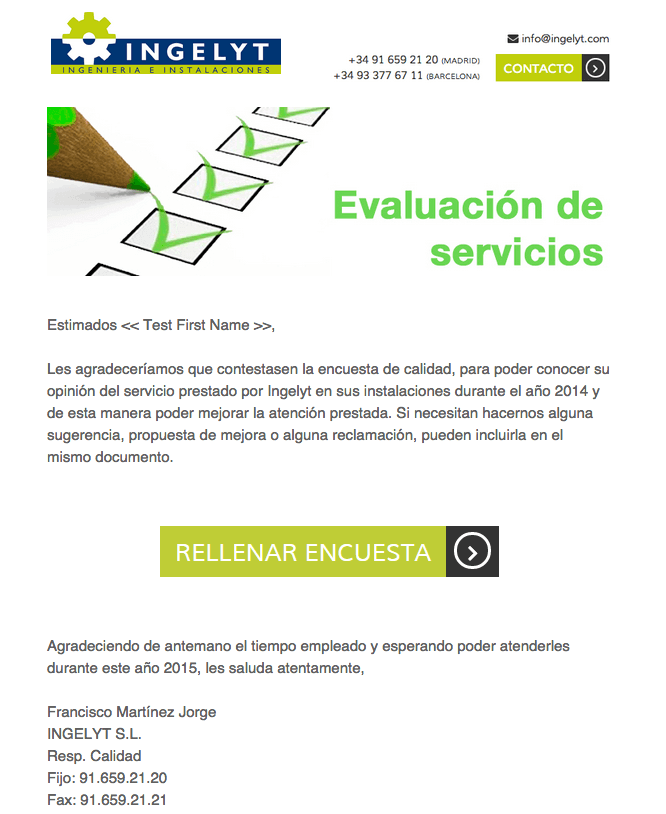
Once we have the survey done, we can create our newsletter with Mailchimp and send the survey to our entire database. To do this, we will create a simple newsletter, to which we will add a button with a link to the survey.
As we have already mentioned, as the people who receive the survey respond, the data will be stored in a Google Sheets associated with the survey, which is automatically created in Drive. In this way, we will save the work of having to manually enter the data and avoid possible errors typical of this process.
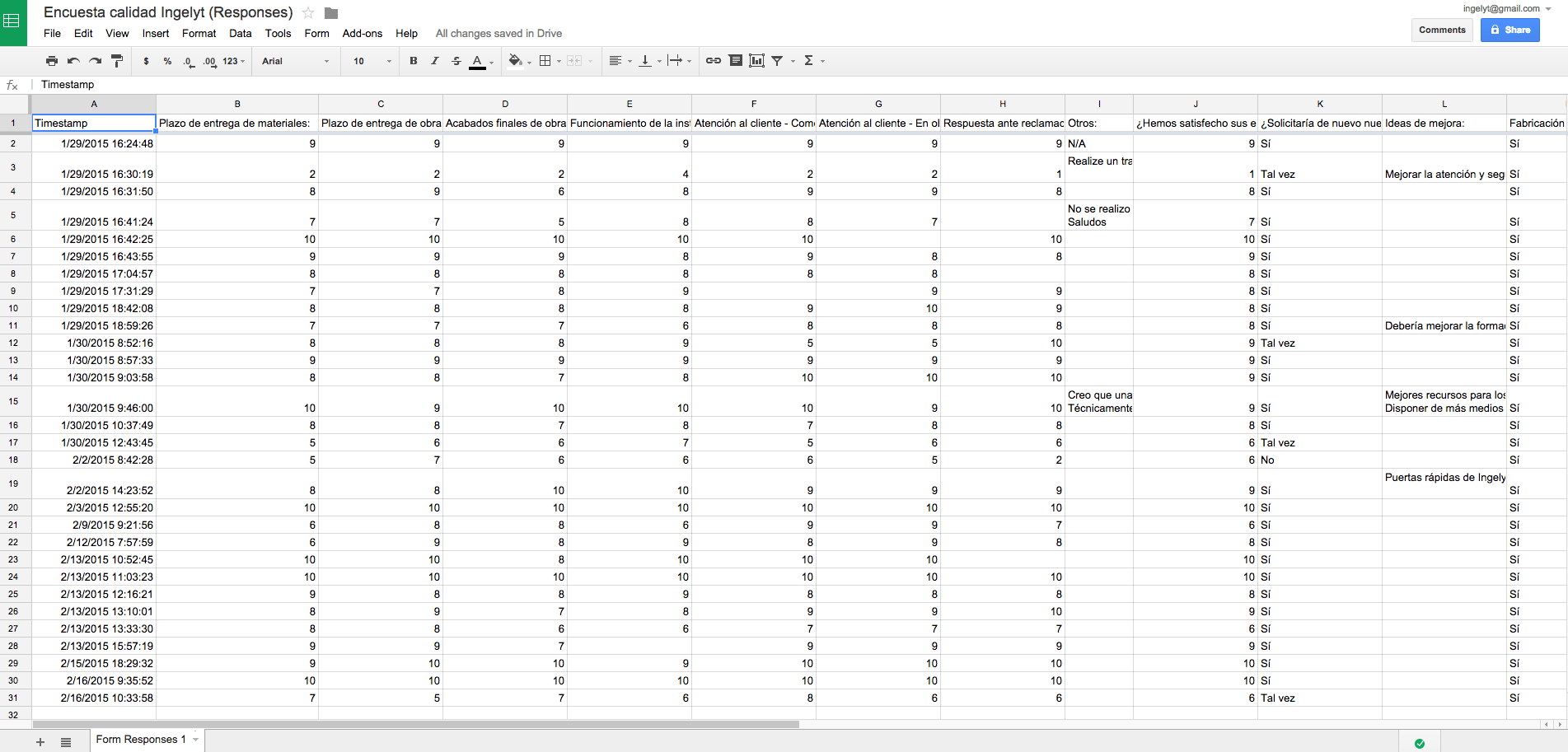
Once we have the data in Google Sheets, we can take it to Excel if we want, we can extract averages, medians, percentages, etc. from the disaggregated data.
As you can see, creating a survey in Google Forms and sending it through an email marketing tool such as Mailchimp is very simple and you will save the time required for a paper survey: sending, collecting data, transferring it to digital format, etc. In addition, users will be much more willing to fill out a survey received via email, which will take them no more than 5 minutes to complete.