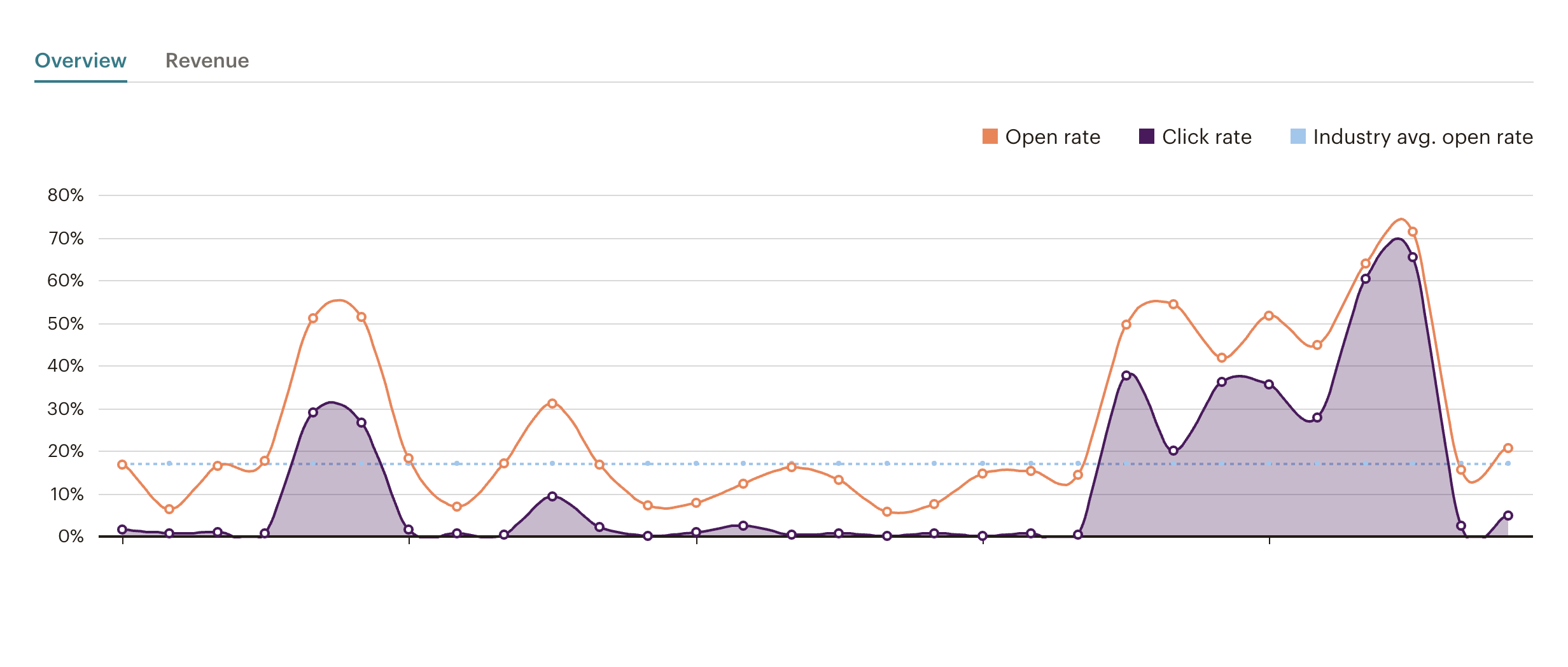
Imagine that you have a database to which you send communications through Mailchimp and you want to run a qualification campaign to get more information about it and thus better personalize the content. Typeform is one of those tools that can help you, creating surveys that your contacts can fill out easily and in a short time. The key is to correctly link both platforms to make the process as simple as possible.
If, for example, one of our users chooses his level of satisfaction and the type of service he is interested in, we will be able to offer him one content or another.
Can you imagine knowing how many of your users want to receive offers, webinars, guides or documentation and which of them don’t? Avoid sending something they don’t need and improve the quality and response of your entire database.
Step 1: The hidden field in the welcome screen
In Typeform, we can configure a number of fields that will not be visible to respondents.
As we can see in the first welcome screen, when we type “@” our fields are displayed. We select name.
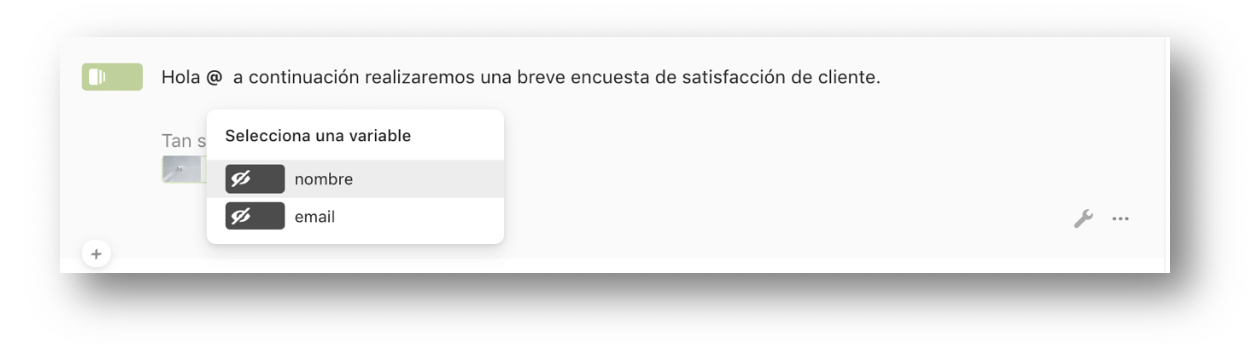
Thus, as soon as the user receives access to his form, we will be able to address him by his name.
This aspect may seem anecdotal, but the truth is that it is one of the most effective ways to empathize with our user.
By including this hidden field block we will see how in the upper right part of the screen -above the form- the image with the URL address appears with default values:

In order to customize the form we must copy this URL with the previously created fields (name and email) and take them to MailChimp.
But before copying the URL we must replace the “xxxxx” with the MailChimp tag values.
In the case of the name:*|FNAME|*
In the case of the email:*|EMAIL|*
The final structure we should see is:
Step 2: Link from a Mailchimp campaign
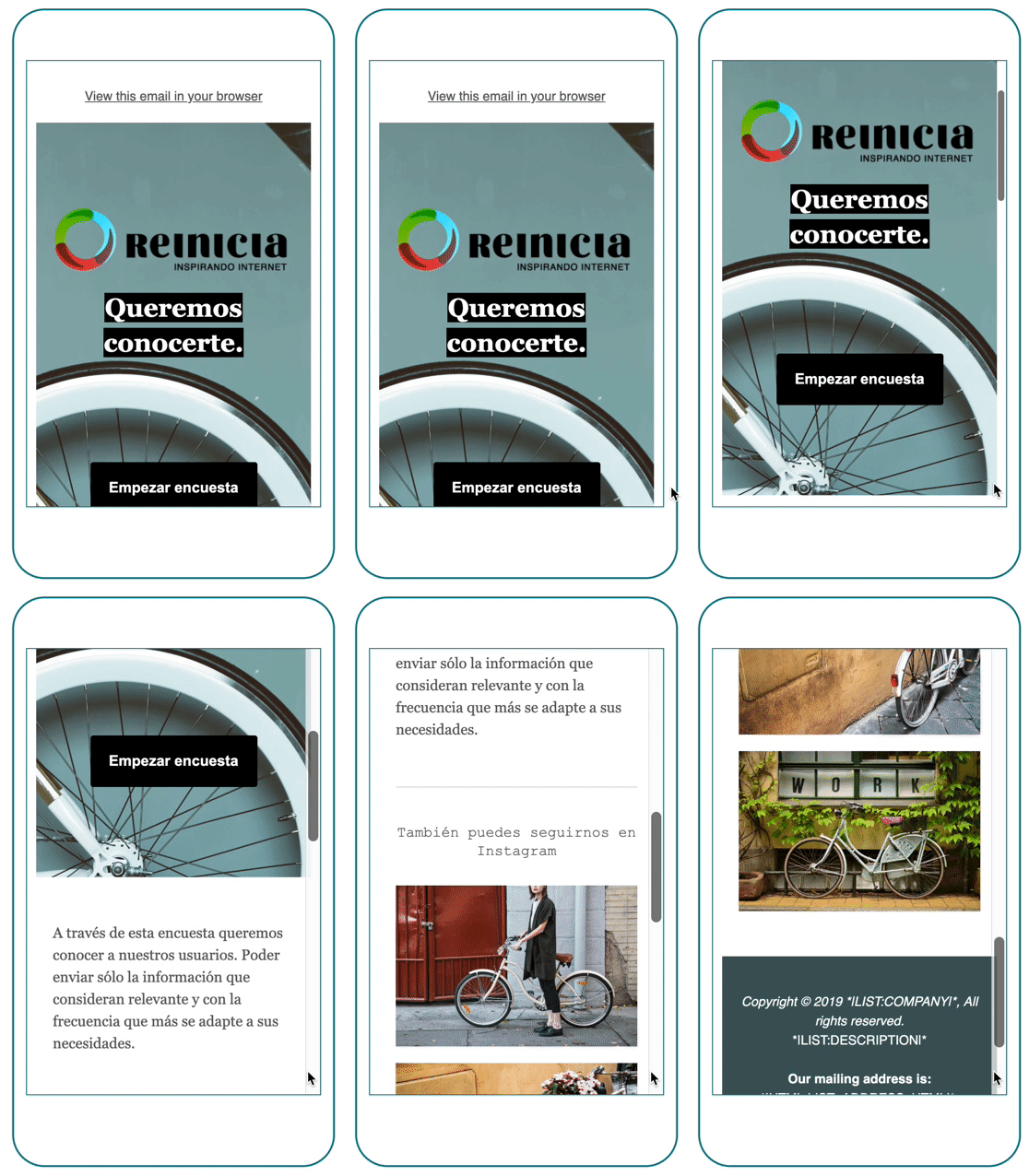
In this way, and once the link has been copied, we can add it to our MailChimp email button.
First we access the editor of the email design we are going to send.
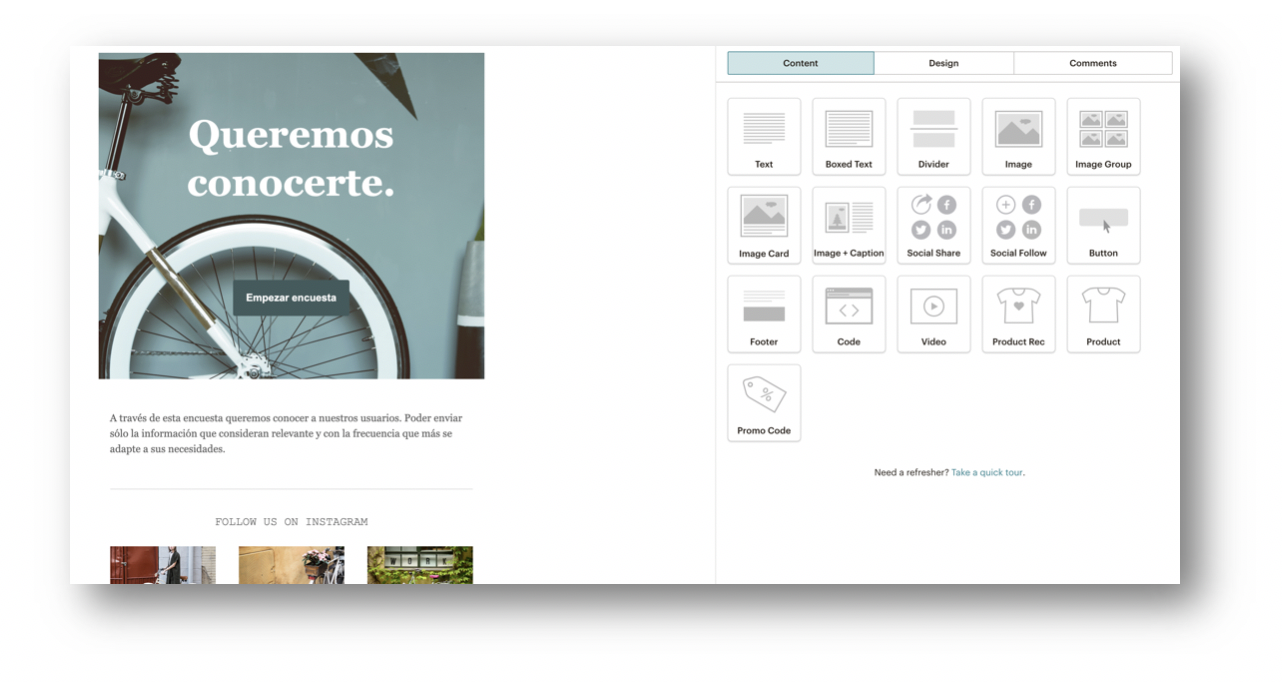
And on the right side we choose the button option:
By dragging the Button option and dropping it on the design we will be able to configure it.
And the options offered by MailChimp appear:
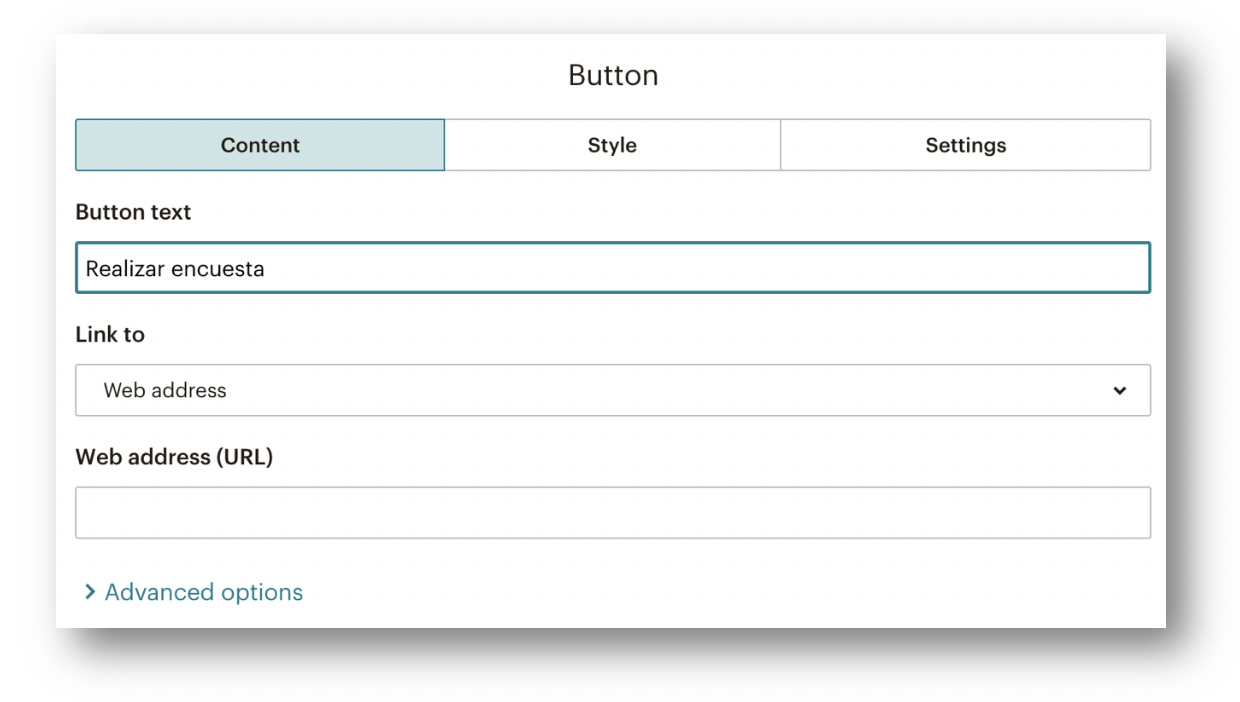
First we fill in the first field. This will be the text that appears in the email button that will lead to the survey. It is and will be a critical point and one of the most important metrics in email marketing. That is why we give you the following advice.
Whenever an email is sent with an event objective or specific action that we want the user to perform, we must be very aware of what action we want them to perform and provide all kinds of facilities to make it happen.
We receive many emails with a multitude of alternative options and content that ends up being diluted.
As long as the user has only one alternative, he will have no difficulty in finding out whether or not he wants to interact with our email. We must keep in mind that users are always in a hurry and any option we offer that forces them to make a decision, they will never do it.
[registro titulo=”Descárgate gratis nuestra guía de conceptos de e-mail marketing automation” url=”https://www.agenciareinicia.com/descarga-de-guia-conceptos-marketing-automation/” texto_boton=”La quiero” imagen=”https://www.agenciareinicia.com/wp-content/uploads/2019/07/Mailchimp_Logo-Vertical_Black.png”]
In any case, it is always best to test what best fits your database, and the type of email they respond to.
In the “Link to” section, we must choose “Web adress”.
Finally, in the last field we paste the URL previously customized with the selected fields.
In this way we will be able to send each of our users a personalized URL with their name and email to optimize the database.
Step 3. Import Typeform data to MailChimp
What we need now is to import all the responses linked to each of the emails in order to add new fields to our database.
We enter Typeform again and access the answers section:
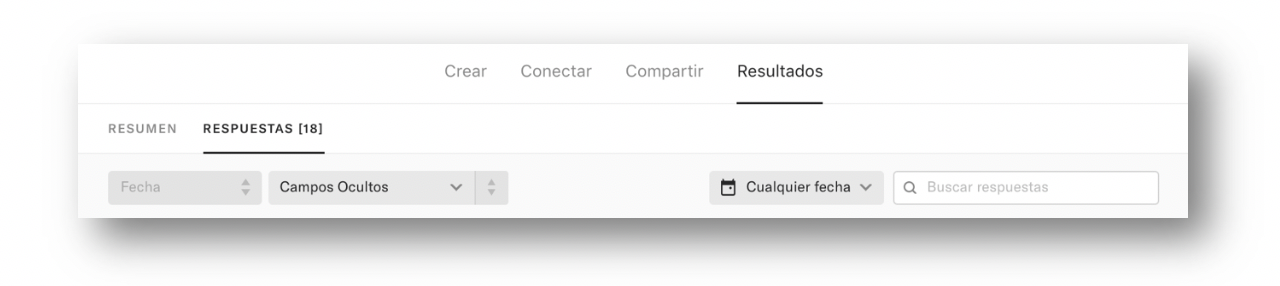
In the Hidden Fields section we have all the answers linked to each of the emails that have filled in the form.
Typeform allows us to download the information in Excel or CSV. So we must click on “Download”.

Once downloaded we will be able to have information in Excel that we will later upload to Mailchimp in order to update the new data of each of our contacts.
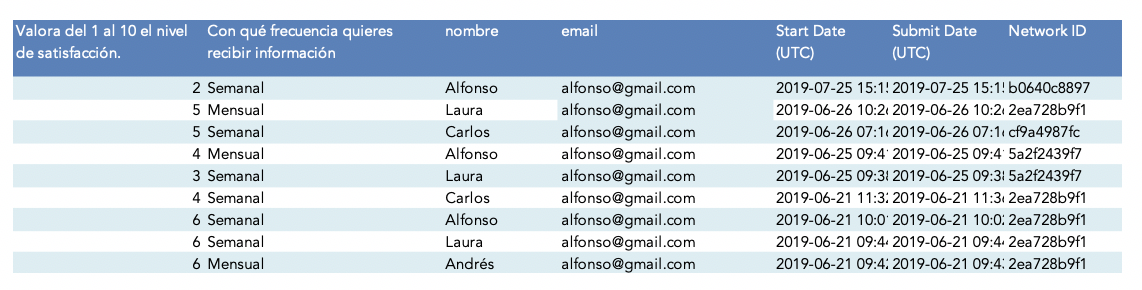
In this way, we will be able to count on Mailchimp with new information when carrying out our actions.
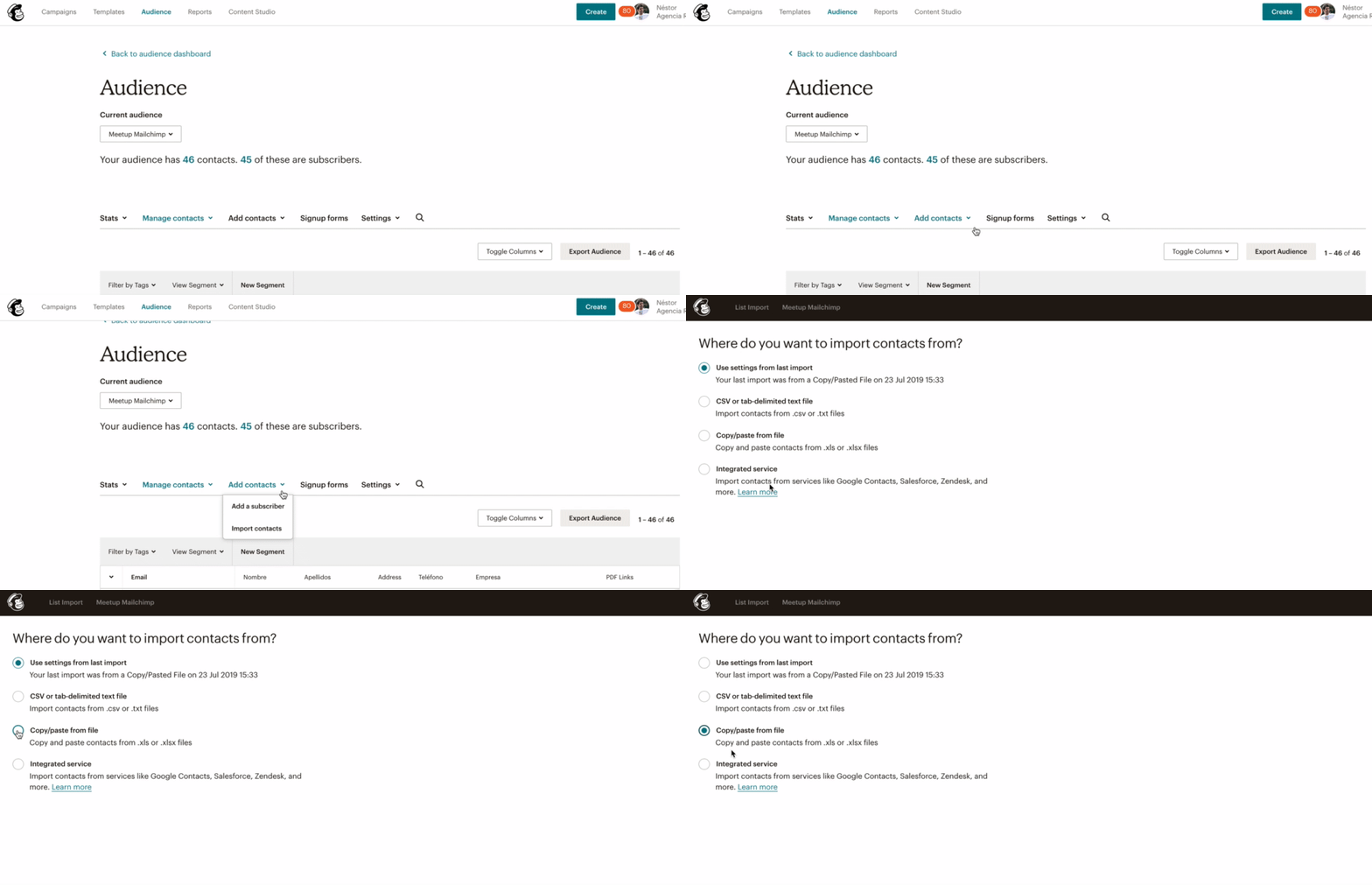
Once the Excel file has been created with the selected fields, we only need to select them:
1- Access the Mailchimp list (Audience) that we want to update with new information.
2- Add contacts and new fields.
3- Paste from our Excel all the information.
4- Once we have pasted the new information from Excel we must (as we can see in the GIF), create new fields for Mailchimp in this list. We can include fields such as: frequency with which you want to receive information, type of customer, or purchases made.
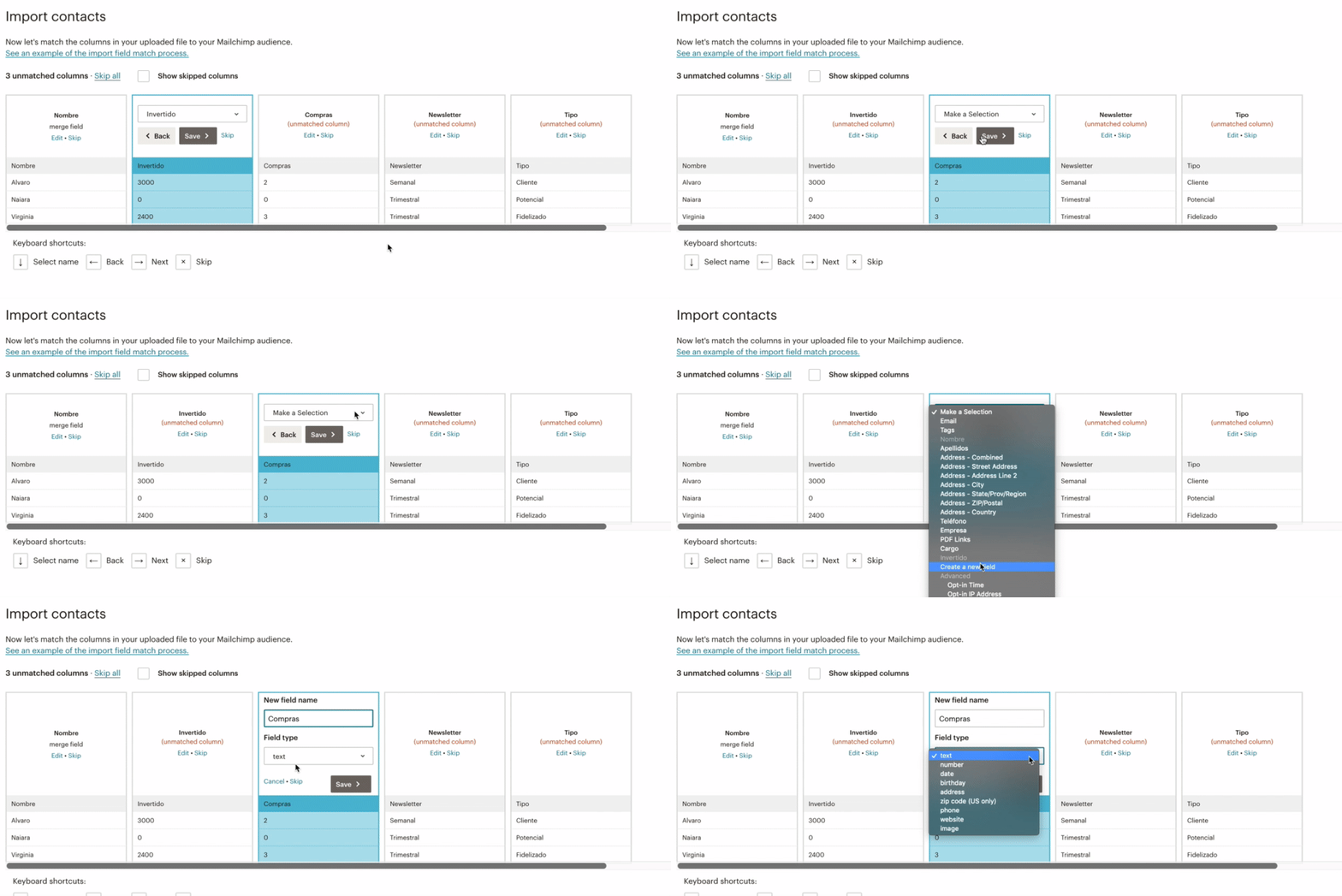
When uploading the new information we must select the option: “update existing contacts”, in this way Mailchimp will include new fields to the users of the database that we already have.
Step 4. Define an email marketing strategy
Once we have much more information about our users, we only need to define a strategy. In this sense, it is very important to ask for the information that is really going to be relevant to our strategy and forget about the information that is not useful to us. The shorter the survey, the better.
Do we offer any guidance on a specific service? Do we have users interested and satisfied with a specific service?
Example to start with: Let’s classify our users.
- Research: all those users who register on our website or blog and do not make a purchase.
- Decision: Those registered users who visit the cart (in case of ecommerce) or visit a specific service page.
- Conversion: Those who make at least one purchase.
- Adoption: Users who make more than one purchase in the last year.
[registro titulo=”Regístrate a nuestra newsletter y descargarte gratis nuestra guía de conceptos de e-mail marketing automation” url=”https://www.agenciareinicia.com/descarga-de-guia-conceptos-marketing-automation/” texto_boton=”Me registro” imagen=”https://www.agenciareinicia.com/wp-content/uploads/2019/07/Mailchimp_Logo-Vertical_Black.png”]
Let’s define a strategy: What are we looking for from each user?
For those who are in the Research stage, we will seek to increase the Decision list through new products or services that may be of interest.
Can we measure the performance of this campaign? The answer is Yes, how many of the Research users have we managed to convert them to a “decision”? By following this process, we will be able to follow our users throughout their purchase journey or conversion funnel.
Each company should analyze what its email marketing strategy should be and which one delivers results in order to optimize its database.
If you want to learn more about Mailchimp you can read here 5 automations that will make your life easier.
Some email marketing results