What is Google Tag Manager?
About two years ago Google launched the Google Tag Manager tool, which allows you to manage tags [code snippets] on one or more websites. With its launch, Google intended that all of us who are dedicated to online marketing would make a 360º change in the way we work and understand web analytics, no longer having a multitude of sites from which to generate and manage tracking tags, each one related to a different tool: Google Analytics, Google Adwords, Mailchimp, Clicktale, Marin Software and any other. Thistranslates into less time in the implementation and management of the tags that we need to include in a web by marketing professionals without having to resort, in many occasions, to a web developer.
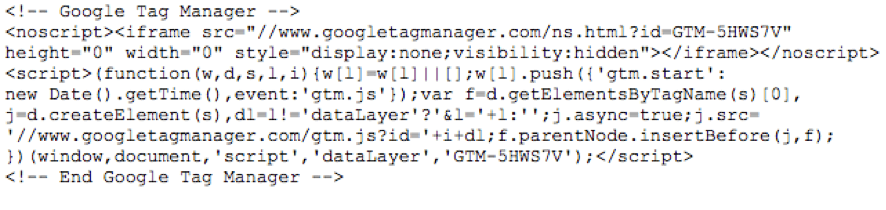
From a technical point of view, Google Tag Manager works through a piece of code or <script > that acts as a container and allows to speed up the creation and management of marketing campaigns through the implementation of tags. This code has to be placed behind the opening of the tag <body> and will allow us to replace most of the tracking tags that we have implemented on our website. In this container we will have all the tags that are being used on our website.
Advantages of Google Tag Manager (GTM)
One of the most outstanding advantages that GTM offers us is the possibility of being able to modify the tracking tags without the need of having to go to a programmer to do it. Although there are other advantages that are advisable that we mention as they are:
- Code cleaning: the only code that GTM adds to the web site is the one included in the container, so we do not have to deal with numerous codes that can make our task difficult.
- Avoid errors, by changing the code only once and not having to replicate it in different places.
- Add, update and delete tags without having to make any changes to the HTML code.
- Easy visualization of the tags that are activated on the website and where they are activated.
- As Google Tag Manager runs asynchronously, it does not affect page loading speed.
- Easy integration with Google products.
- When we want to make variations or modifications in our code we can do them inside our container and those changes will work and will be applied instantly.
How to create a Google Tag Manager account
When creating a Google Tag Manager account, the main and most important requirement is to have a Google account with which to create our Tag Manager account.
The steps to follow once you have a Google account are as follows:
- We register a new account.
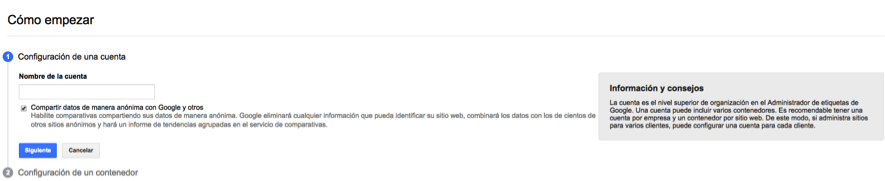
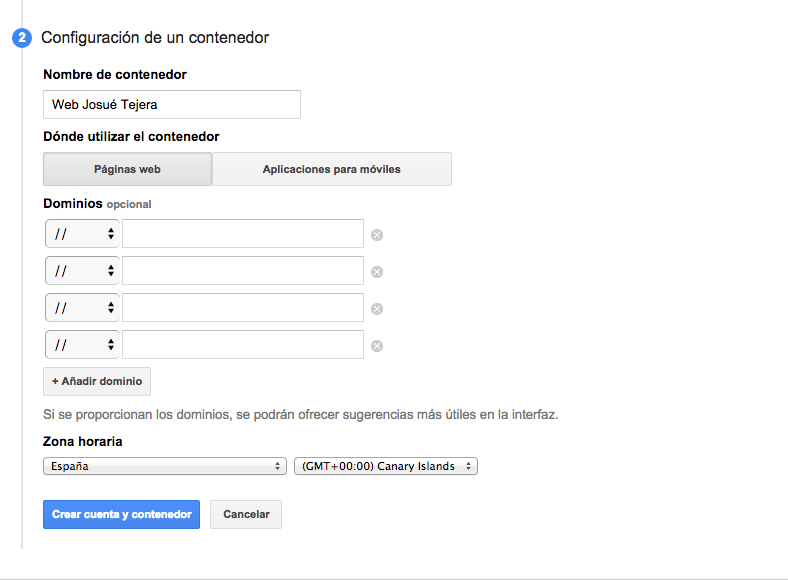
- We configure the container.
Once we have created the account we proceed to create a container, although the same container can be used with several domains, here we will create it for a single domain.
- Once we have configured our container, and we have accepted the conditions for the use of Google Tag Manager we can implement the code on all pages of our website. We have to be very clear that this code must be placed after of the tag <body>. In our case the code that Google Tag Manager has provided us with is the following:
[truco]To verify that we have installed it correctly, we can resort to a small Google Chrome extension, the Tag Assistant.[/truco]
- Define custom labels
Once the container is created and installed, the first thing to do is to include the labels of those tools that you have installed. For example, it is very likely that you have installed Google Analytics. In any case, Google Tag Manager gives us the option to implement a multitude of tags such as :
- Adwords Remarketing,
- Adwords conversion tracking,
- Google Analytics,
- DoubleClick Floodlight counter,
- DoubleClick Floodlight sales,
- Custom HTML tag
- Personalized image label.
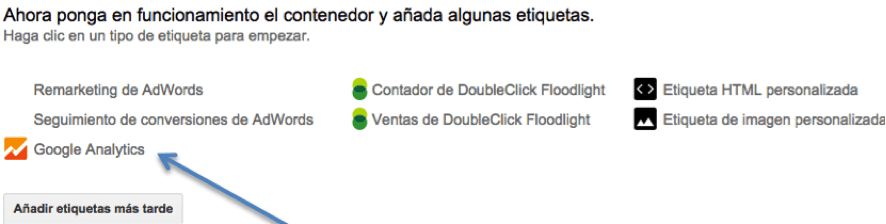
As we mentioned before and as we indicated in the image above, in this case we are going to implement the Google Analytics tag. To do this, click on it and we find the following panel:
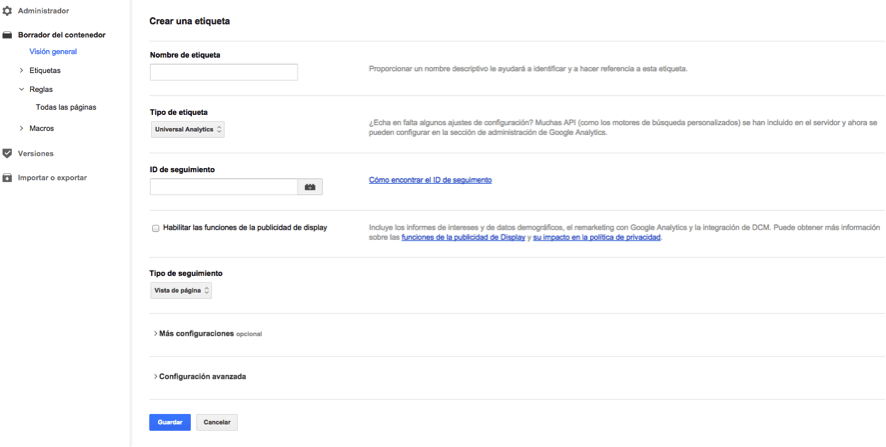
In this step we will have to fill in a series of fields, such as:
- Name of the tag: In our case we are going to call it Google Analytics.
- Type of label: choose between Universal Analytics or basic Analytics.
- Tracking ID: the one given to us by Google Analytics when we create the account.
- Tracking type: we can choose the one that best suits what we want to analyze, in our case we select PAGE VIEW, it is the most common when defining the tracking in Google Analytics.
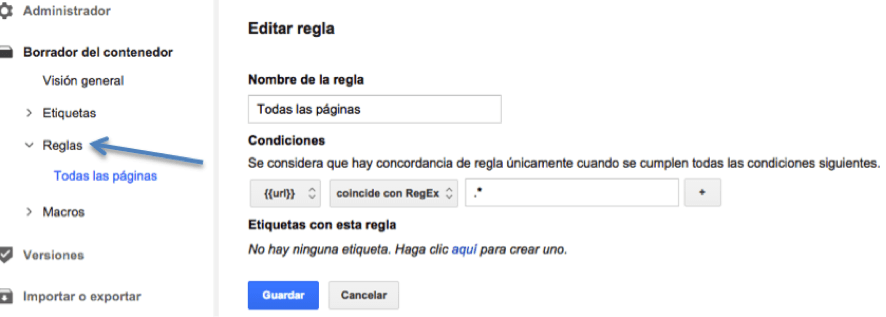
- Finally, once we have defined the main fields to implement the Google Analytics tag, it is necessary to set the rule, because without it our tag will not be activated and the work we have done to get here will be useless.
Before the label starts to work we will proceed to see a PREVIEW, with this option we will be able to see the draft of the container without the need to create a version first.
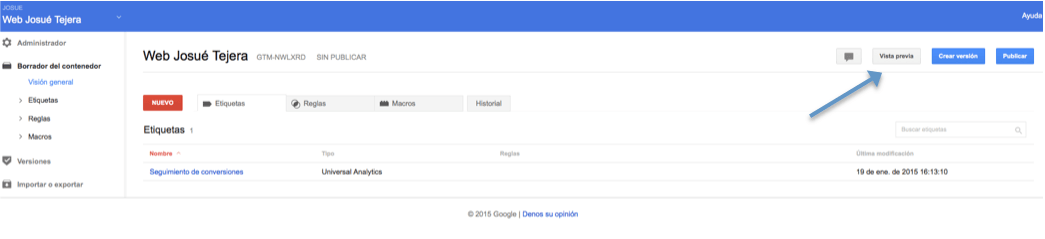
Once we agree with our container we click on PUBLISH.

What are Rules and Macros in Google Tag Manager (GTM)?
Although this information may be a bit technical, we believe it is good to explain it, even if only briefly.
The rules in GTM, are conditions that we apply to the tags to control the moment in which they must be executed. If the rule is met, it is considered true and the associated tag is triggered and if it is not met, it is considered false and is not triggered. For example, we will associate a rule to the Google Analytics tag so that it is activated whenever any page of the website is loaded. Any new URL value on our website will activate the rule. In order not to scare you, it is very important that you have in mind first of all that Google Tag Manager has predefined tags, this one among others.
In web containers, a tag must have at least one rule in order to be activated, since these are activated when the conditions of the rules we have previously established are met.
Macros, on the other hand, are variables to which a value is assigned at the moment the action they are associated with is executed, for example, when loading a certain page, and they can store different types of data. The rules are conditioned by the macros and are activated or deactivated when the value of a macro meets the condition that we talked about above . Google Tag Manager allows us to create macros from the administration panel and its role is very similar to those of the get variables coming from the programming language.
An example of a macro could be: to measure which is the link most used by users to view the same content when there is more than one link in the Home [a value is assigned to the macro when it is clicked].
We hope that this article has given you the first steps to encourage you to use this incredible and fabulous tool that Google has created for our benefit.