WordPress is the most widely used content management system in the world. It can be found at estimates that 20% of all websites are built on this platform. These are staggering figures that, if on the one hand give us an idea of the potential of this platform, on the other hand we have to worry about its vulnerability, since the more a system is used, the more susceptible it is to hacker attacks.
At Reinicia, we take the security of our facilities very seriously and there are a multitude of best practices you can follow to increase it in your WordPress.
Among the many measures we point out, the most relevant are related to the passwords you use and the periodic updates of your installation and plugins to keep them up to date. It should also be noted that public themes (paid and free) and the most used plugins, whose code is visible and well documented, are much more vulnerable. In this sense, developing custom themes will ensure a higher level of protection since the code behind them is not visible to everyone.
But how do you act if your installation has been compromised?
Your WordPress may have been infected with malware, a malicious code that without our consent infiltrates the code of our software. There are several types of malware with different purposes (stealing users’ personal information, displaying advertising, hacking our computer).
As a consequence Google will mark your domain with a warning. This measure clearly has a catastrophic effect on your online presence, since many people, alarmed by the warning, will desist from entering the site and will go to other competing sites.
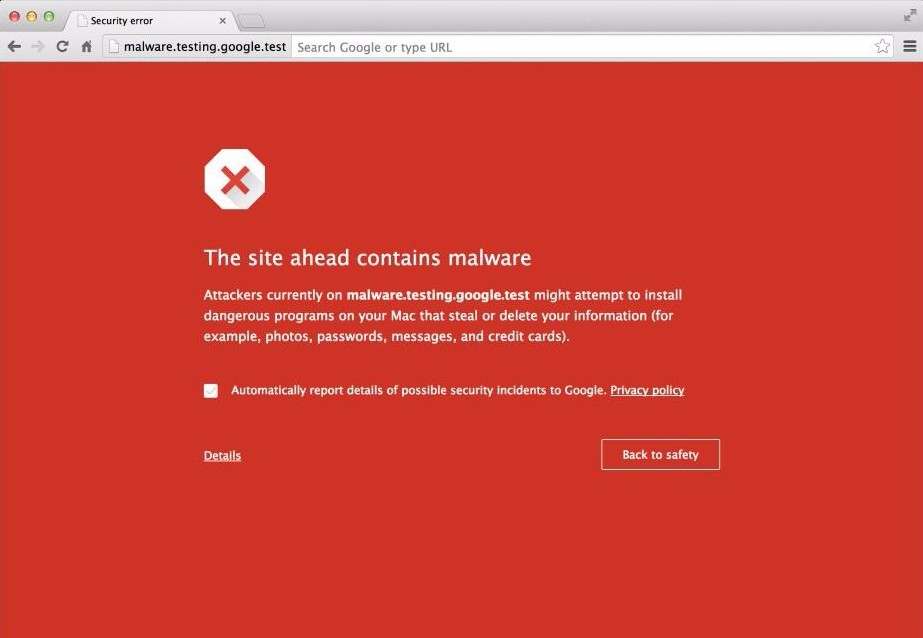
By following these simple steps you will be able to solve this problem and avoid being penalized in the search results [SERPs]:
- The first action will be to deactivate all the plugins of the installation and activate a default WordPress theme. Twenty Sixteen might work.
- The files and the web database must then be backed up on a local computer.
- Run a scan with an antivirus program to try to locate the source of the malware in the files you have downloaded. If you do not have a paid one, we recommend the free version of Avast. The antivirus will give you clues as to where the virus or malware is located but your work does not end here.
- Completely reinstall WordPress on your server using a virgin installation. You can download it from WordPress.org
- Reinstall all the plugins, in the same way, by downloading them again from the WordPress.org and not reusing files from the old, infected installation. While downloading each plugin, you have to check if all plugins are still supported by the community, i.e. they are still being updated with new versions. This step is essential as it will ensure that an outdated plugin was not responsible for hacking your installation. If you find among your plugins one that is no longer supported, it is recommended, if not mandatory, to look for an alternative.
- If the antivirus has not found any suspicious files in the /themes and /uploads folders, you can put these two folders back to their initial position via FTP.
- Reactivate the topic
- Change WordPress panel and FTP access passwords
- Delete all SPAM comments. If you have a lot of comments, you can do a mass deletion through the plugin“Bulk comment remove“. .
Request a review from Google
Once these points are done, our installation should be clean. How do we notify Google now to double check the cleanliness of our WordPress and proceed with the removal of the message?
This process can be managed completely through Google Search Console by requesting a new review. To do this, you will need to access the Search Console control panel and go to the “Security Issues” section of your site:
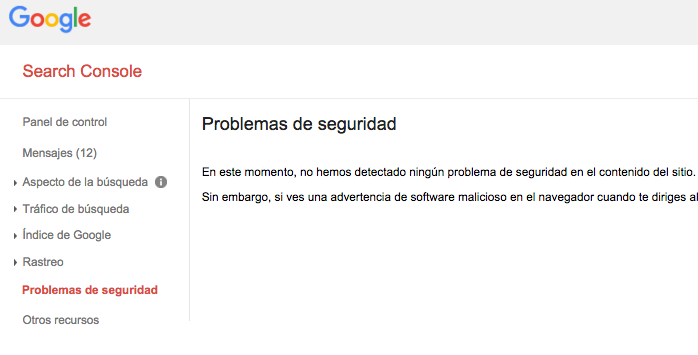
You will need to log in to your account, and go to the “Messages” or “Security Issues” section. On either of these sites, you will see a message from Google informing you that a virus has been detected on your site and that it could compromise the security of your visitors. To get Google to remove you from the “blacklist”, you will have to click on the “Request review” button and write in the dialog box that opens the actions you have taken to solve the problem, i.e. what we have told you above. If everything is correct, you should receive a message from Google in an estimated time of between 24h and 48h saying whether it has been solved or not.
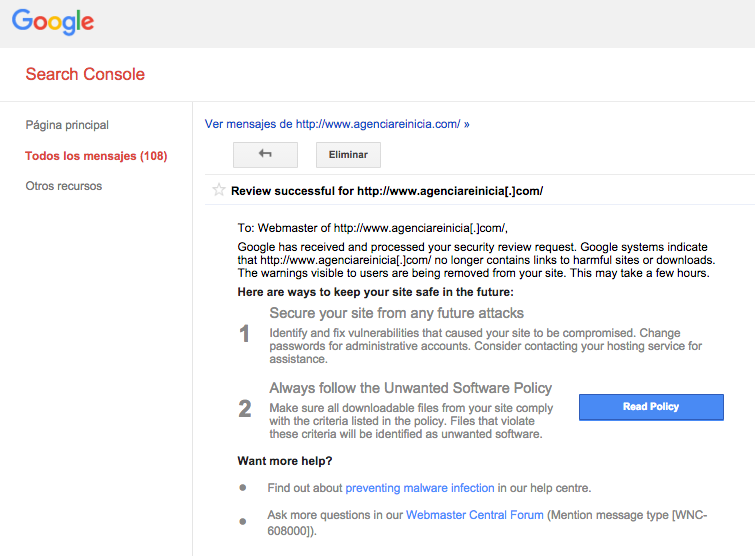
You have a Google help section where it is explained.
It may happen that you clean the virus and the Google message pops up again. This is normal. It is due to the fact that many times we do not clean all the code correctly and as soon as a little time passes, it is activated again, or that, having cleaned it, we have not solved the vulnerability of the system and again the virus penetrates it. You will have to be patient, follow the previous steps again and investigate a little more to find out what you had missed in the first cleaning.
Again, you will need to request a review from Google. Once you have submitted it and Google has checked again that your website is no longer under attack, it can take between 24h and 48h to remove the malware warning.
Your WordPress has been hacked? Do you need help to restore your website? Contact us and we will help you.
Write to us without obligation